
This guide details how to configure selection rules that govern when optional components are included in a generated document according to a user’s questionnaire responses. It demonstrates how to map a content record to a specific section, question, and answer, ensuring the content is inserted only when the appropriate criteria are selected. Note that selection rules are intended exclusively for optional components. If an item is intended to always be included, do not apply any selection rules to that component.
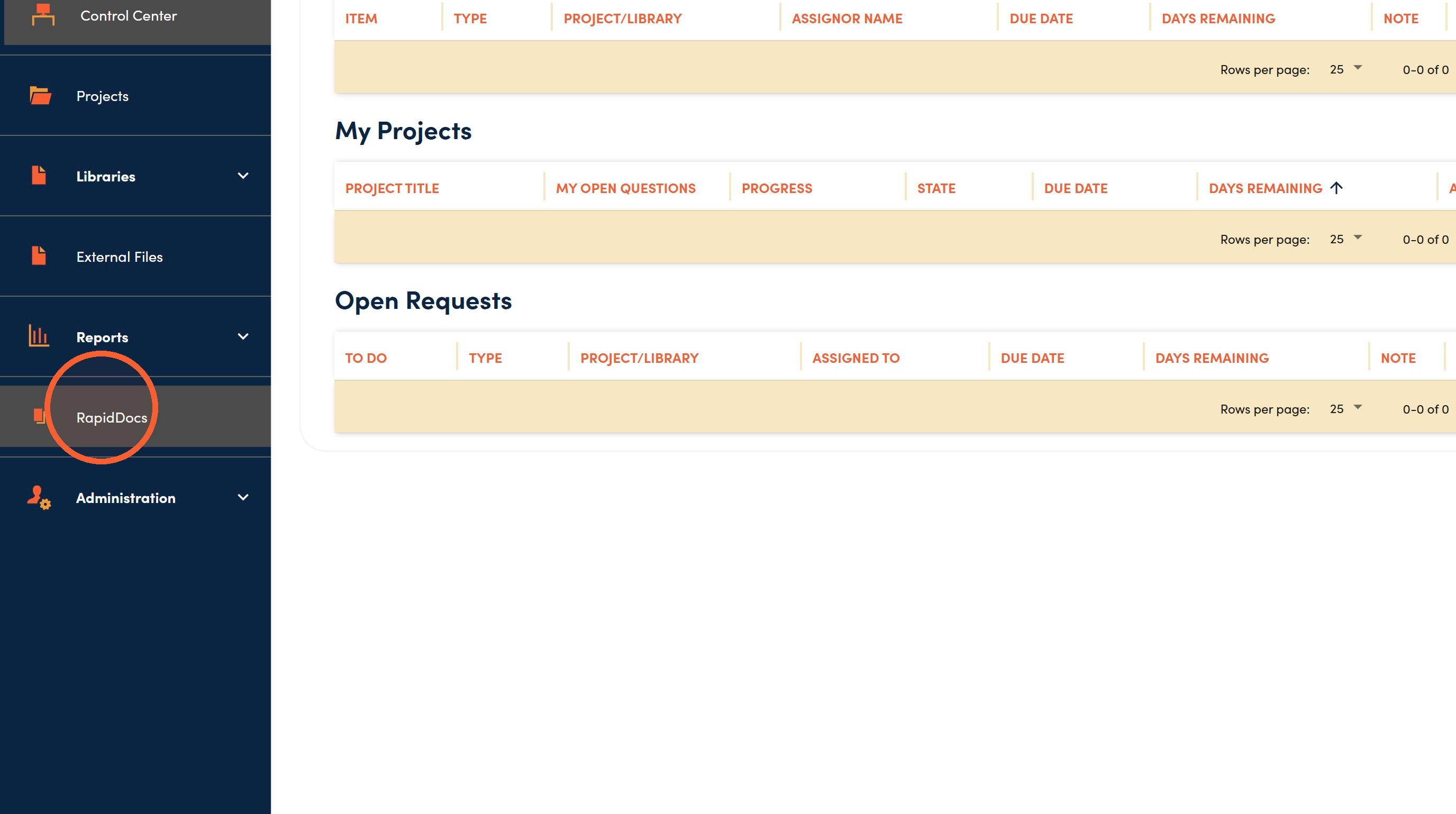
1. Navigate to your RocketDocs site then click RapidDocs.
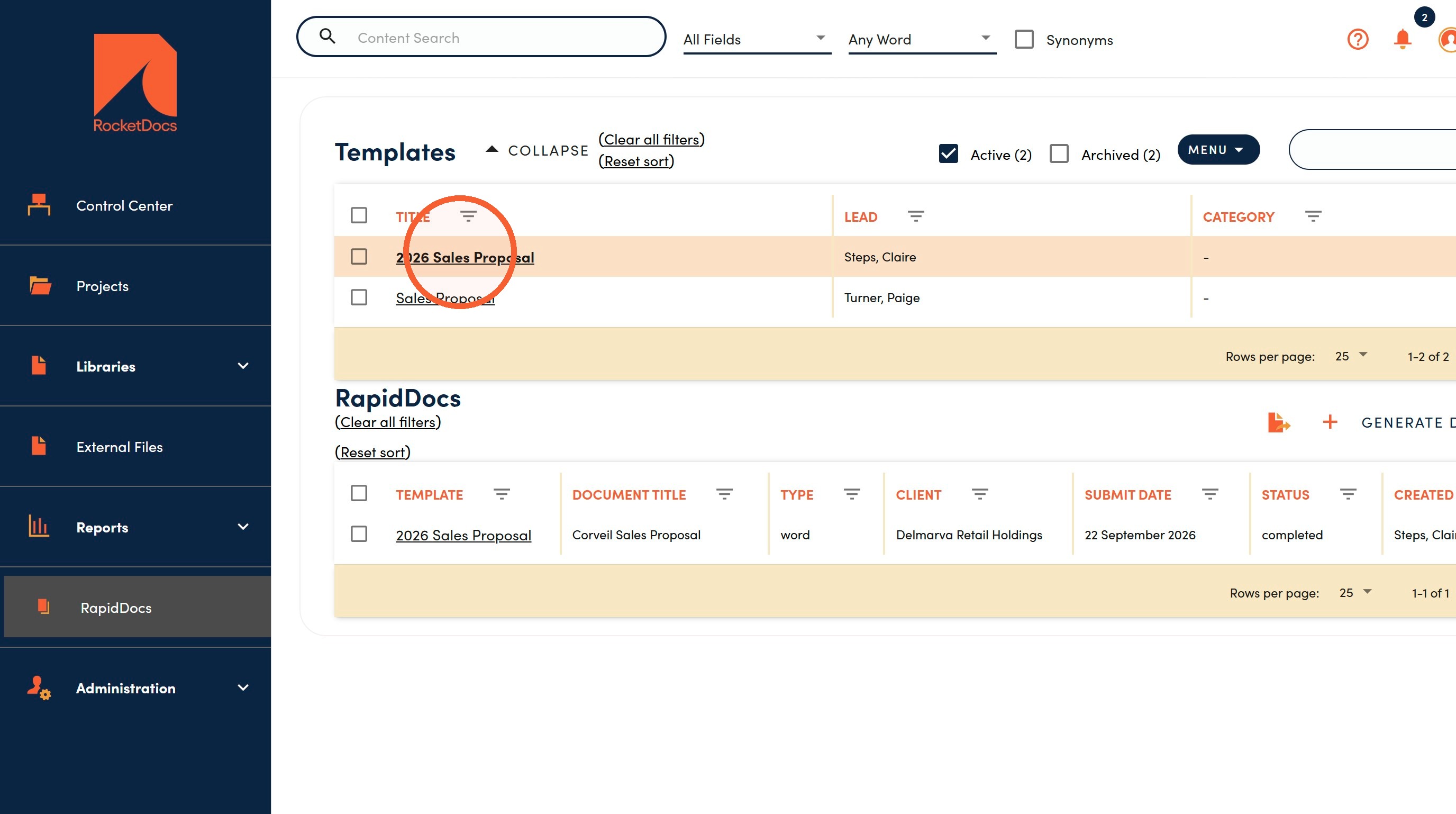
2. Click the template's Title.
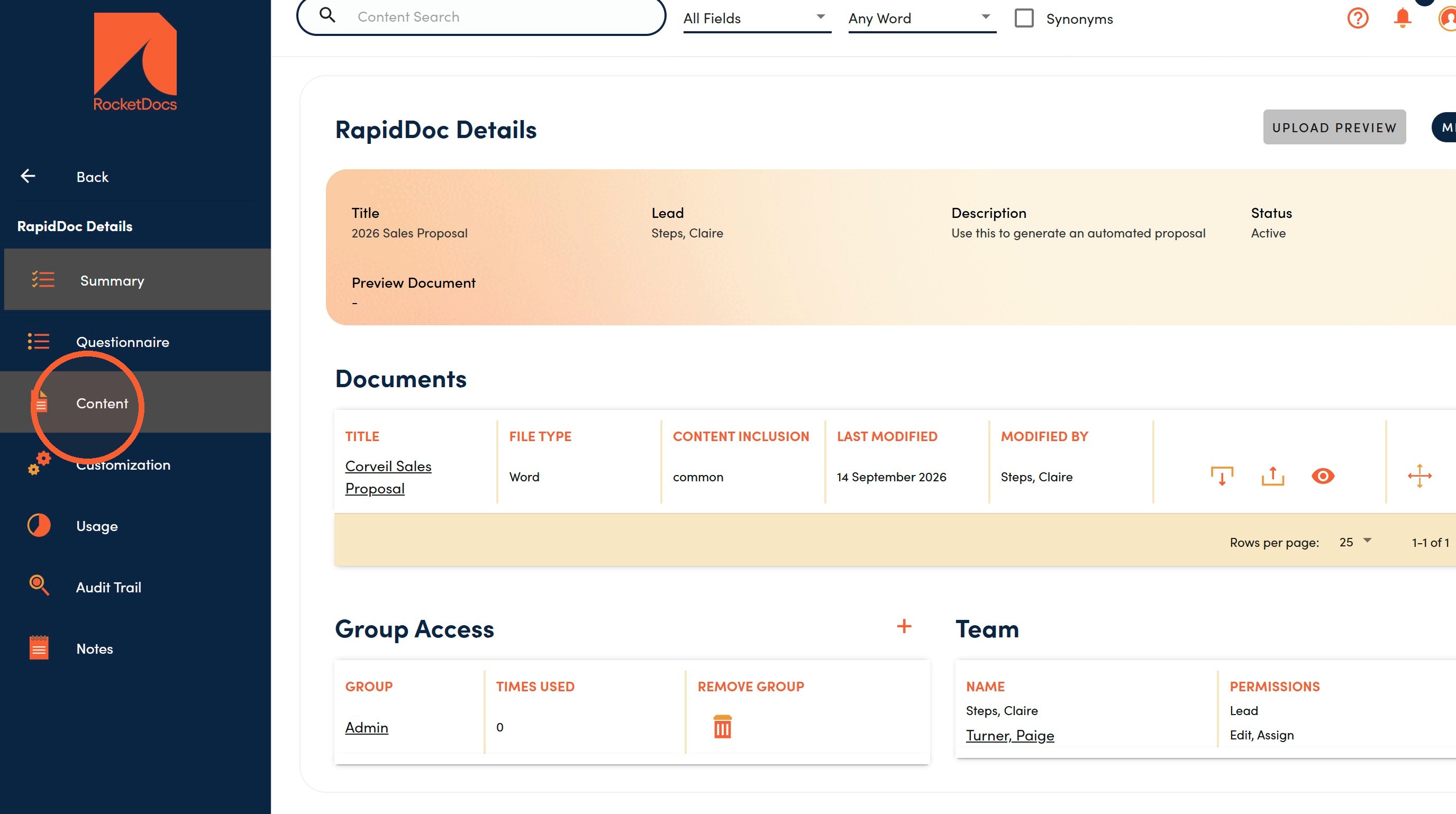
3. Click Content.
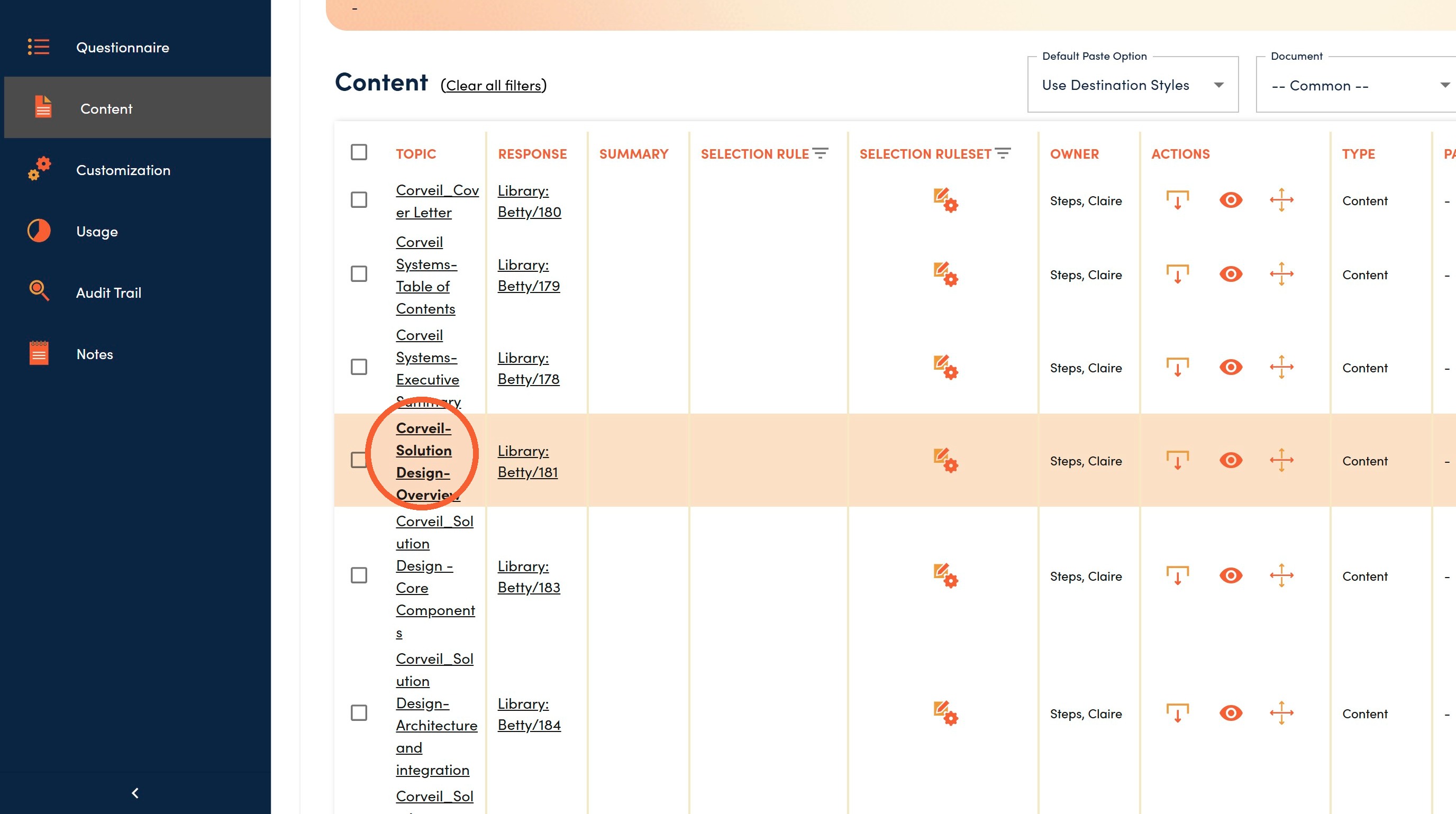
4. Click the content record's Title.
5. Under Selection Rule, click Section.
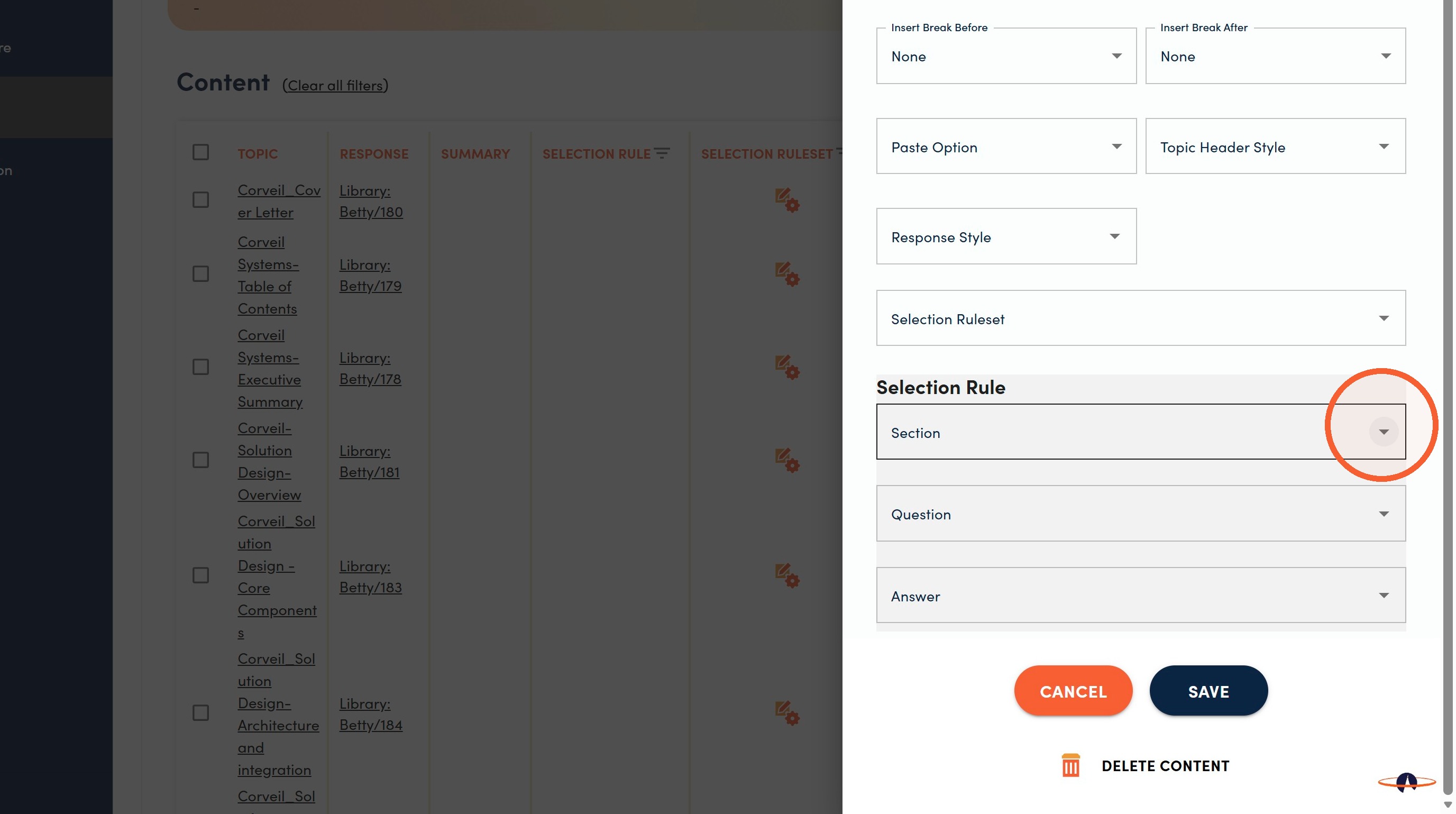
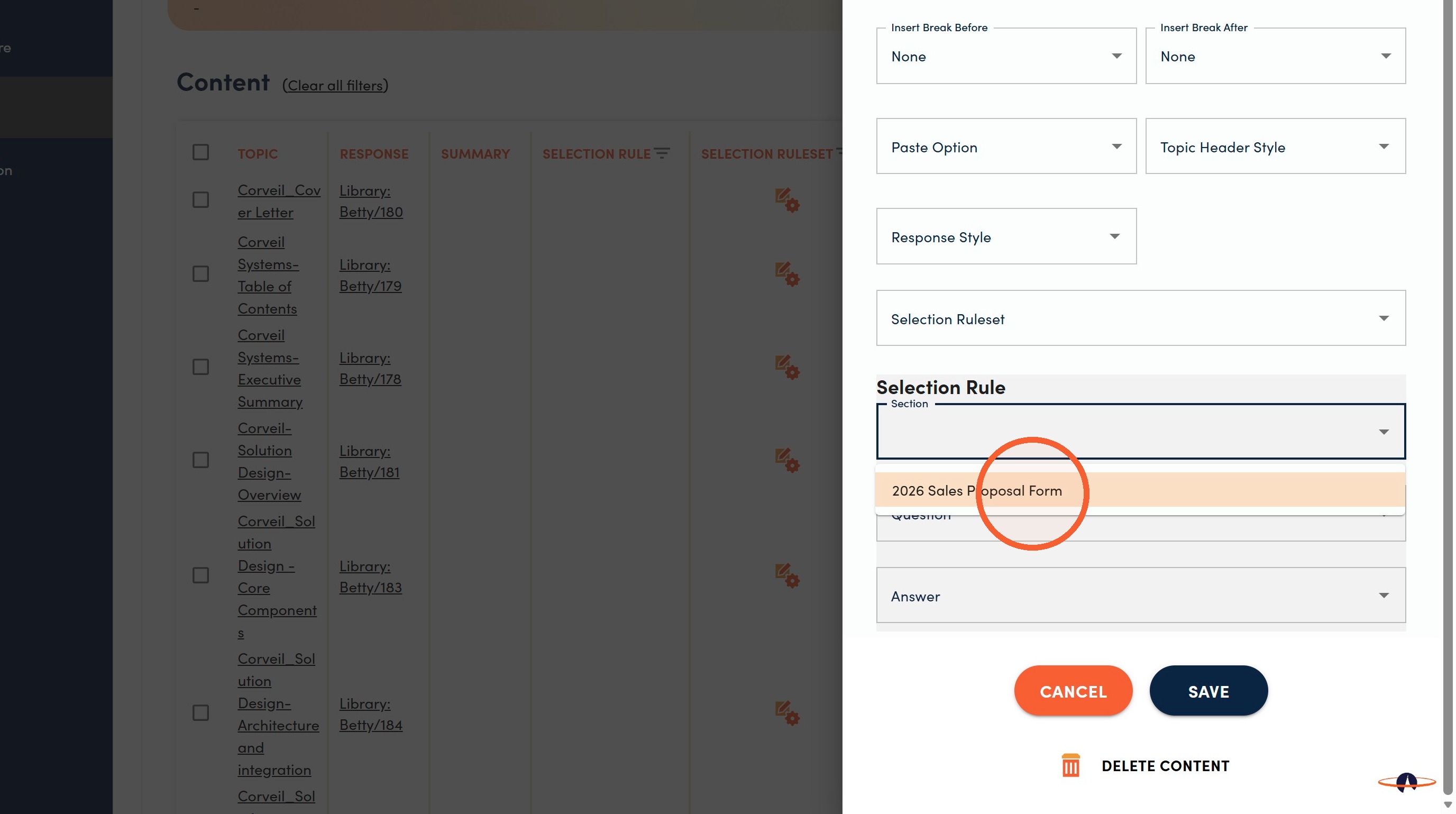
6. Click the Section name where the associated Question appears.
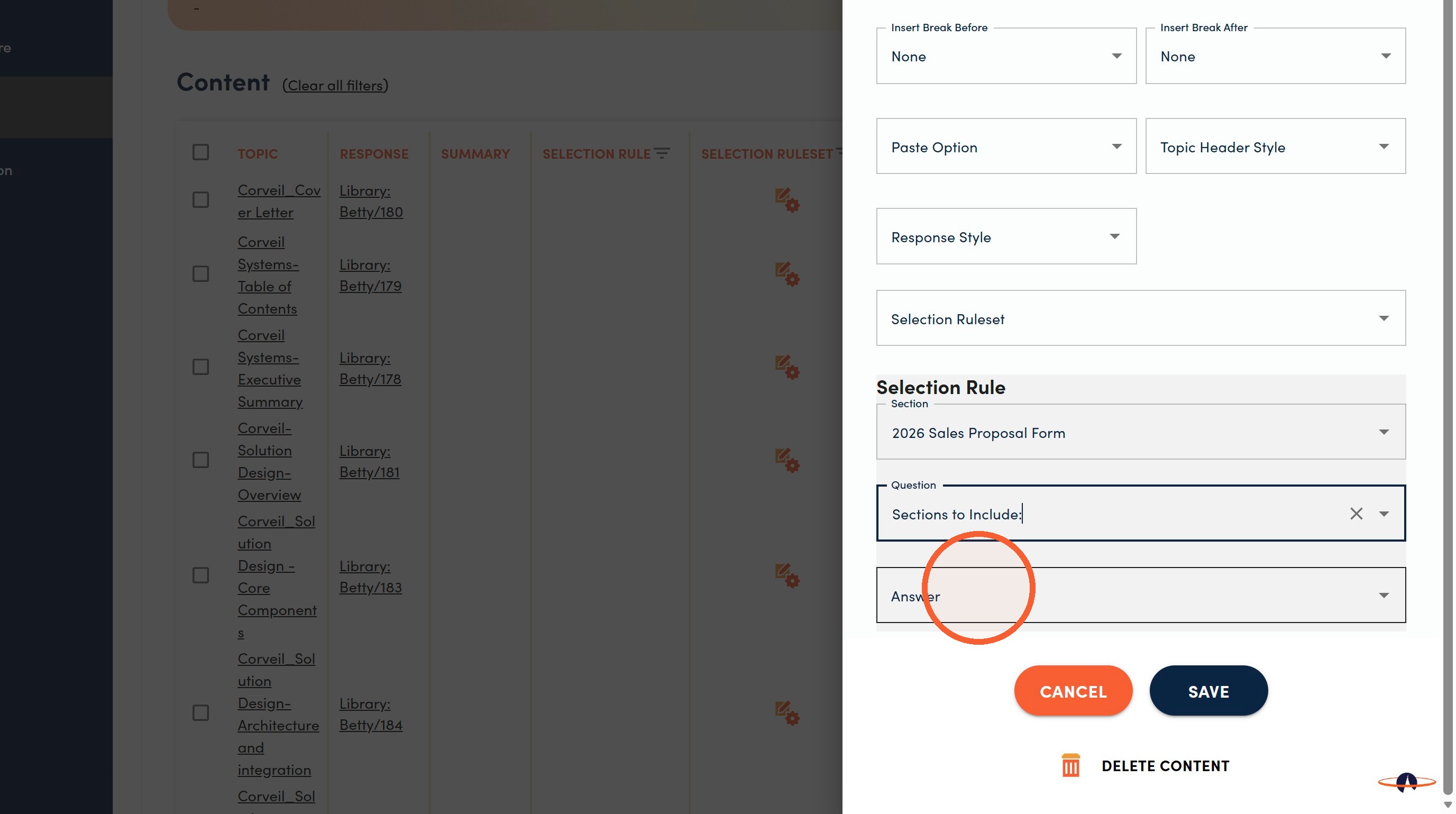
7. Click the Question dropdown.
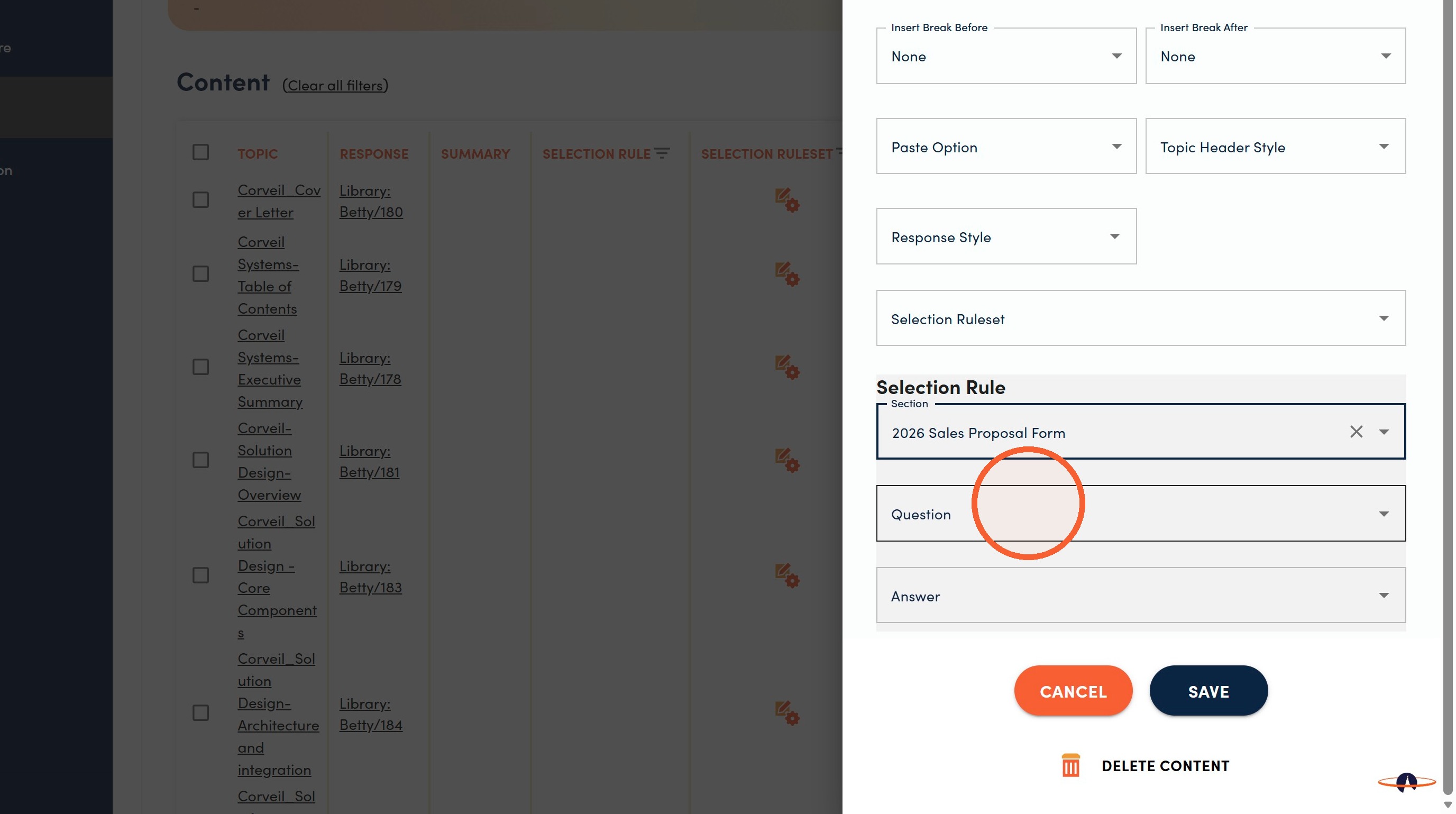
8. Select the associated question.
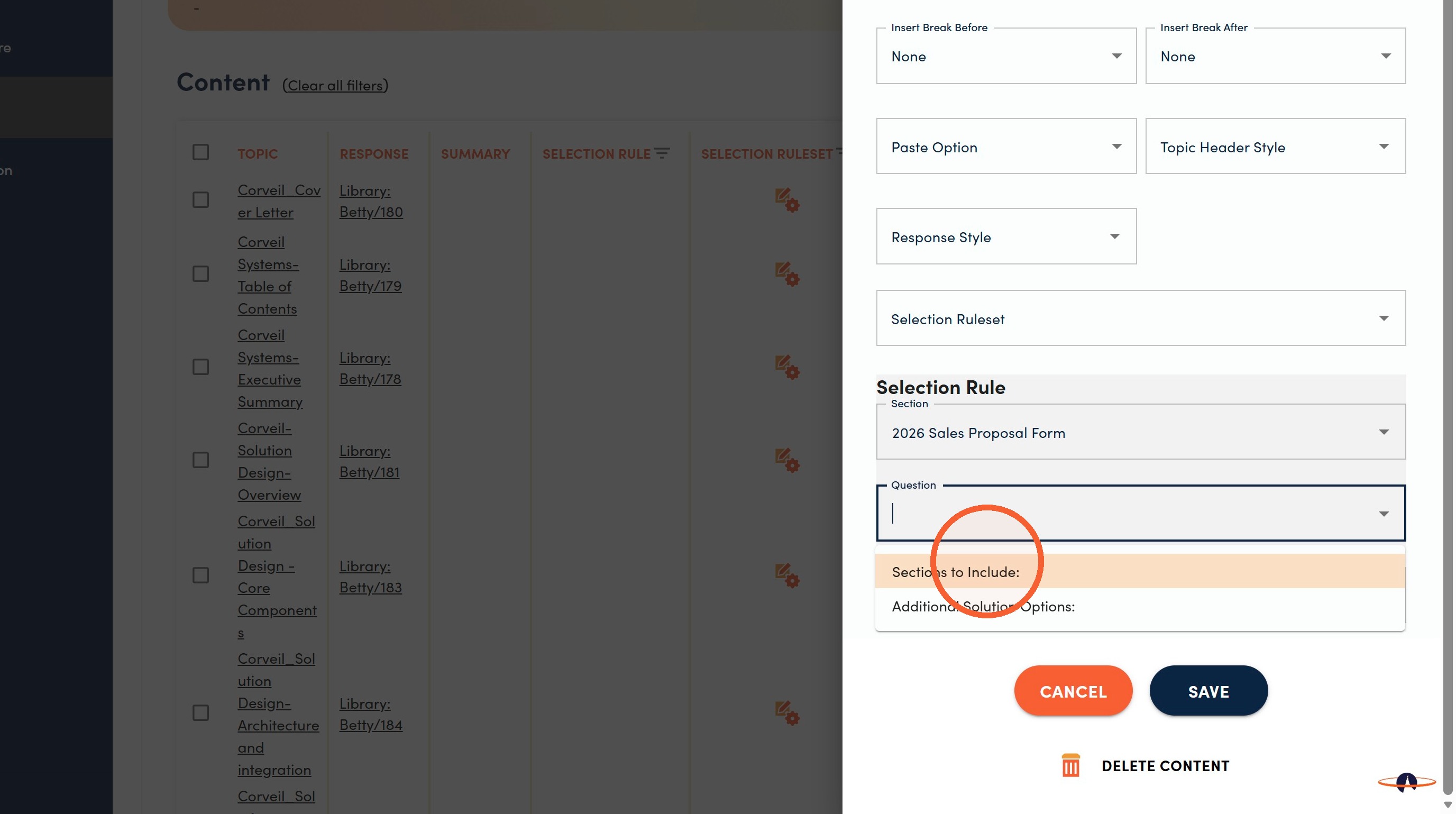
9. Click the Answer dropdown.
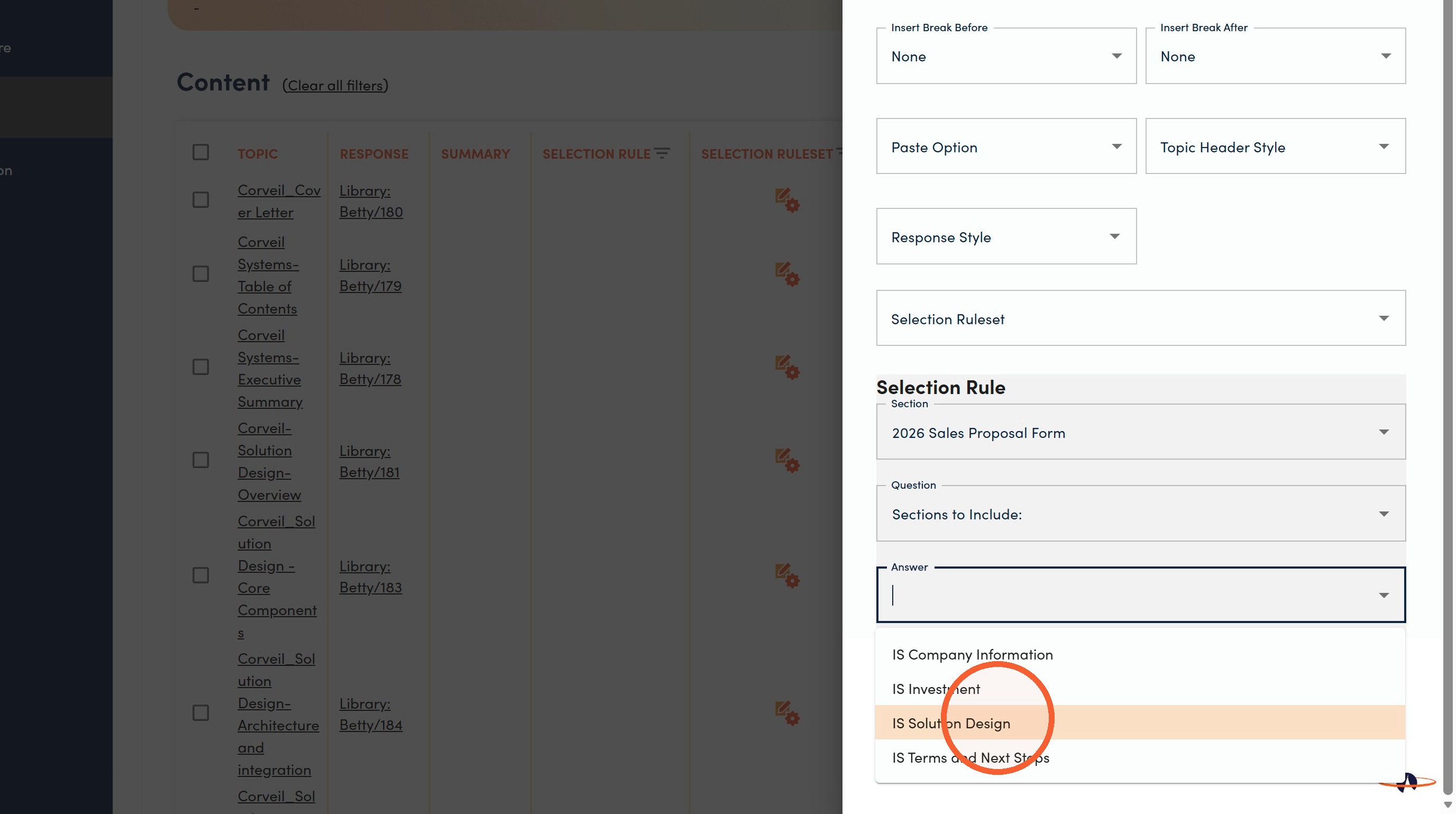
10. Select the associated answer.
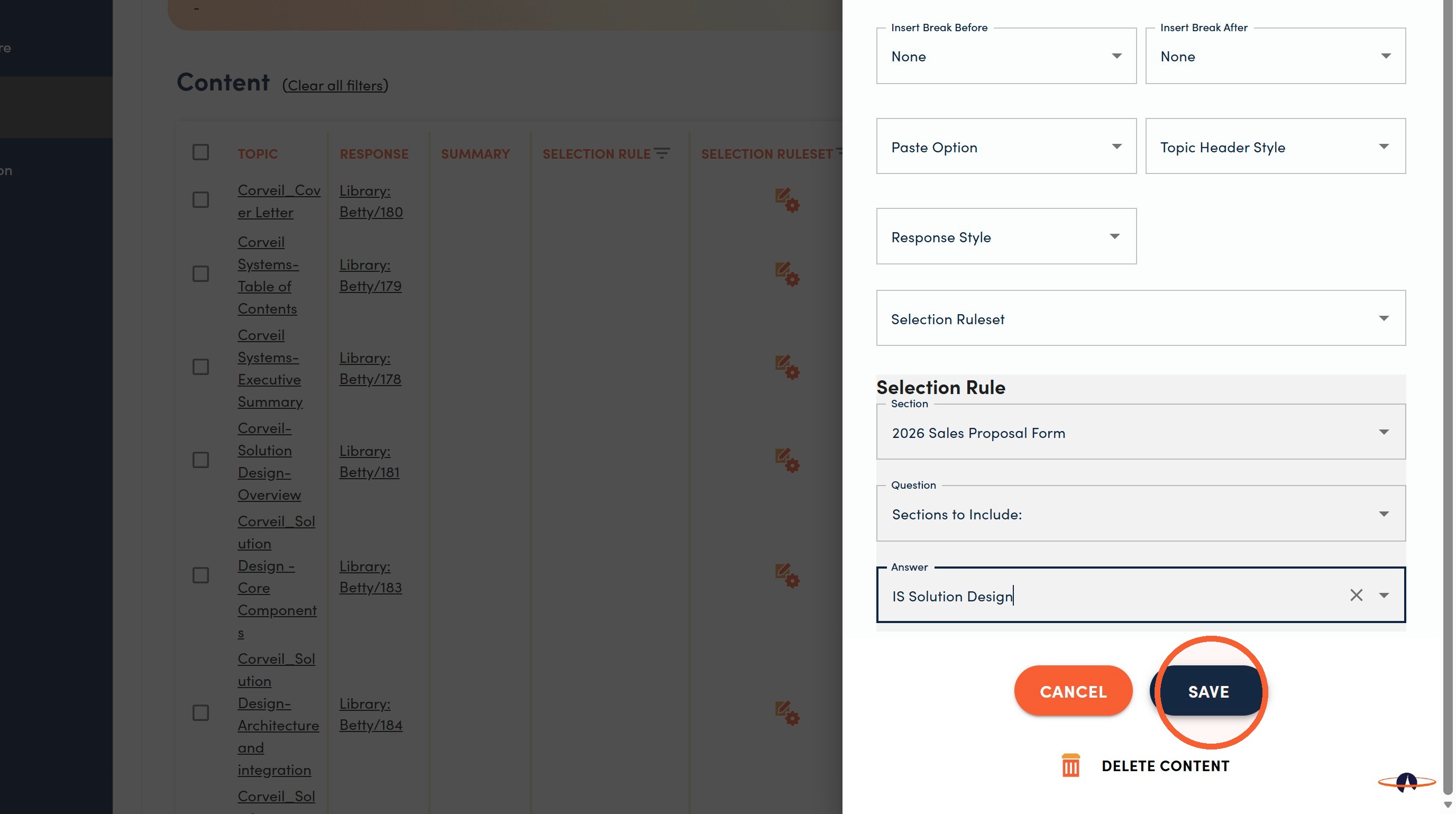
11. Click Save.
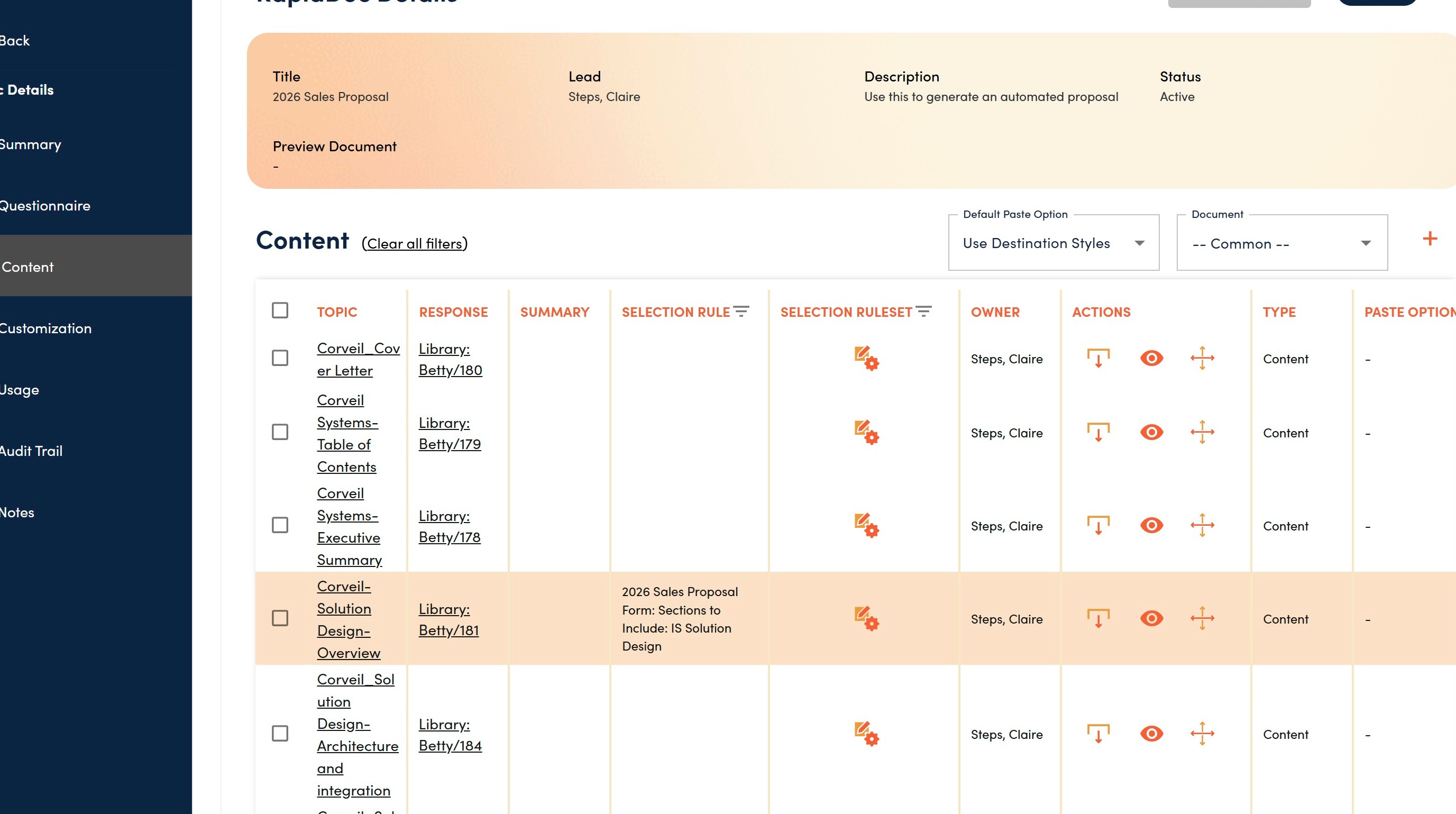
12. You are returned to the Content page and the newly added Selection Rule is displayed. Repeat for all items that require a specific selection rule.
Refer to RapidDocs | Configuring Placeholders and Attributes in the Customization Menu for next steps.