Key Benefits
- Single source of truth: Manage all content from one centralized location
- Granular control: Define use case permissions at the library or individual content level
- Enhanced governance: Full knowledge management features including SME assignment, expiration dates, and review cycles
- Streamlined migration: Bulk operations make transitioning from legacy locations straightforward
Use Case Permissions System
The new permissions system allows administrators to control how each piece of content can be used. Three distinct use case permissions are available:
- Use for GenAI: Allows content to be used in generative AI in the web app, LaunchPad, or Astro
- Use for Autofill: Allows content to be used when autofilling a project document in the web app or LaunchPad, and insert from the LaunchPad Search or Insert AI tabs
- Allow Copy to Project: Allows the attachment to be copied to a project documents list
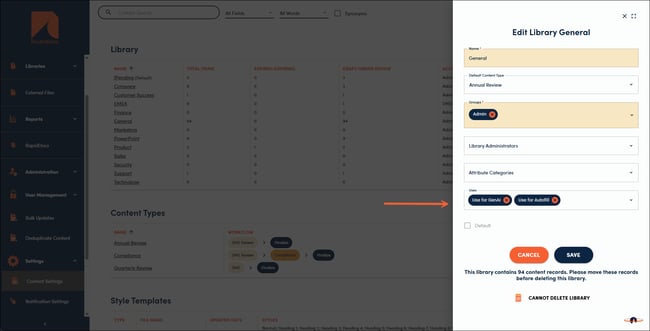
The default uses for new and existing libraries are Use for GenAI and Use for Autofill. These can be adjusted by navigating to Content Settings, Libraries, and selecting the Library name, then select the preferred “Uses” from the dropdown menu.
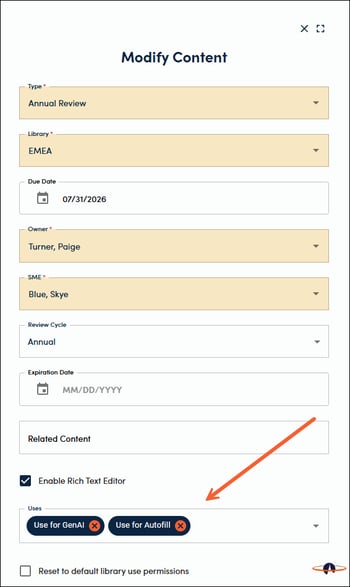
Uses can also be managed for individual content records by navigating to the details view of the content record, clicking the Menu icon, and Modify.
Copying Existing External Files and GenAI Folders
When you’re ready to move your External Files and GenAI Folders to your content libraries, the process is simple!
External Files
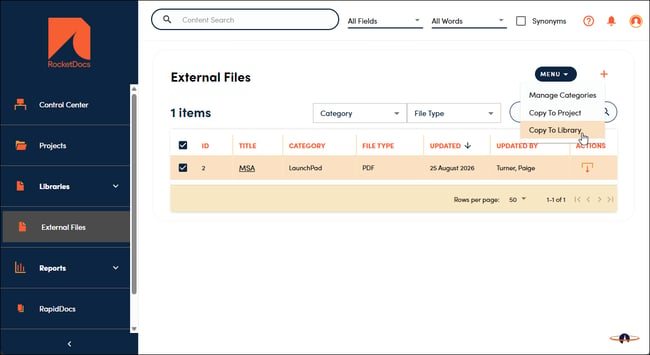
1. Select the files you want to copy, you can select a specific category to filter first
2. Click the Menu icon
3. Select Copy To Library
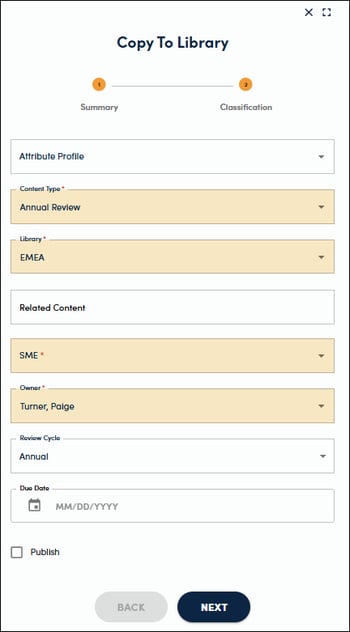
4. Fill out the details and click Next to add your Classification. Click Submit to finish.