General Information
Contributors are granted no cost license to access RocketDocs. Using the no cost license, Contributors are able to view and edit content where they are listed as the SME or Assignee, to respond to proposal questions, and review content as it expires or as things change
Notifications
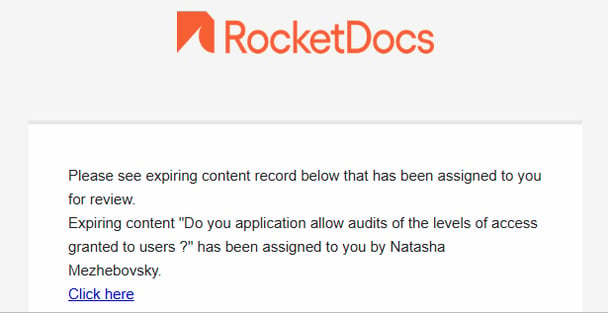
Contributors are generally notification-driven users. As a Contributor, you will receive an email and/or an in-app notification (depending on your tenant's settings) if a review is initiated on your content records or if a writer assigns you a new project question.
In-App Notification
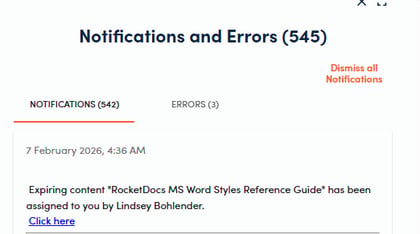
You are able to access your notifications on the Bell icon in the top right-hand corner of your RocketDocs screen. Once you have read the notification, you can click on the hyperlink in it, to access the assignment.

Email Notification
You will be prompted to log in to your organization’s RocketDocs site when you click the email notification link.
Logging In
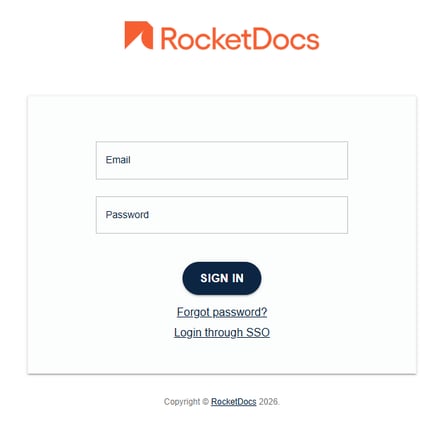
If it is your first time logging in, navigate to your organization’s RocketDocs URL or click on the link in your welcome email. You will be redirected to a page where you can set up your password.
If you do not receive a welcome email, click on Forgot Password? and a password reset link will be emailed to you.
User Interface
The initial screen you see upon log-in is the Control Center. Navigate back to this screen at any time by clicking on the RocketDocs logo on the left navigation bar.
The My To Do section shows you all of your outstanding content reviews and project question assignments. Click the Item title or question to navigate to the Content Details page for the record.
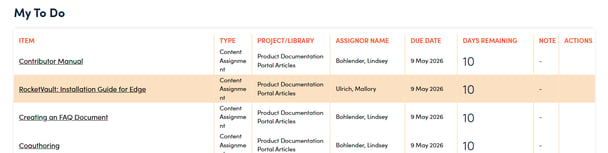
If one of the items assigned to you has a due date associated with it, the Days Remaining will show in the sixth column.
Edit/Approve Content
Once you are in the Content Details page, you can type in or edit a response in the Plain Text Response field, if it’s a plain text response, or in the Document Editor if it’s a response that includes styles, tables, charts and/or graphics. Click Save at the bottom of the page to save progress if you are done with your work for the time being and would like to return to it at a later time.
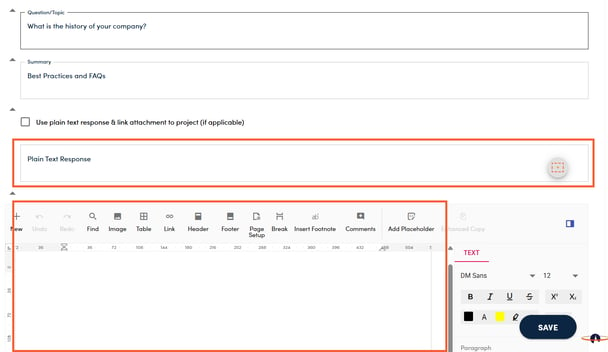
Click Save & Approve/Promote (to move the content record to the next step in the review process) or Save & Publish (to publish the content record). Please note that your options may vary based on actions available to you in the workflow step.

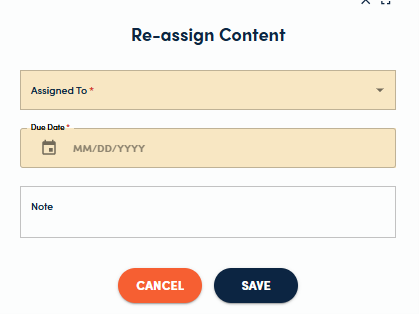
If you would like to send the record to someone else to review, click Reassign and select their name from the list, choose a due date, decide if they can approve the record, and add notes if needed.
Collaborate on Projects
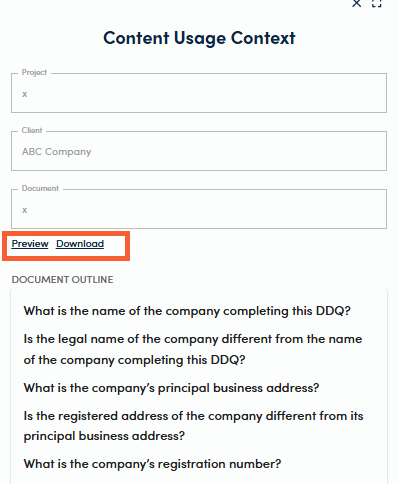
While Contributors are not able work on projects directly, they are able to view the project to better understand the context around the question(s) being asked by clicking on the View Context button below the Question/Topic. They will then be able to view the list of questions (their question will be in blue) and preview or download the document.