
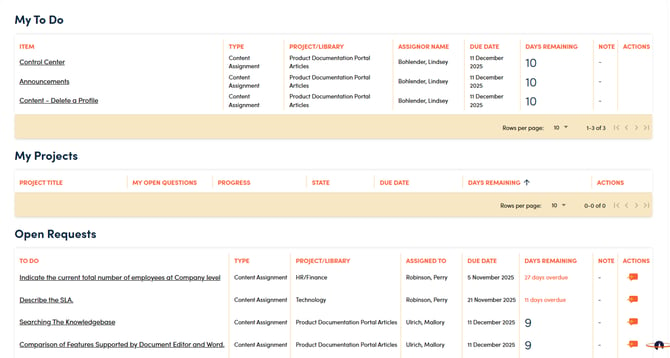
1. My To Do shows all of your outstanding questions, content assignments, project assignments and tasks that have been assigned to you. This section can be used to manage your upcoming deadlines.

📋Helpful Information:
-
Click on any item name to navigate directly to it, in order to work on it.
-
The 'Type' column indicates the type of assignment.
-
The 'Project/Library' column indicates what project or library the assignment pertains to.
-
The 'Assignor' column indicates who assigned the item to you.
-
'Due Date' and 'Days Remaining' provide information about the due date of the assignment.
-
The 'Note' column will contain a note pad icon if the assignment has a note pertaining to it, you can hover on it, to see the note.
-
The 'Actions' column:
-
Group Assignments, the icon in the Actions column indicates that the assignment is a group assignment. The assignment will show up on the My To Do of the assigned group members until one members clicks on the Claim button. At that point, the assignment will fall off the ‘My To Do' of all group members except for the one that claimed it. It will remain on the 'My To Do' of the group member who claimed it, until they complete the assignment.
-
2. The My Projects section reflects all of the active projects that you are leading or are part of the team on and gives you several useful pieces of information, along with the ability to preview the project document or download the project to begin working on

📋Helpful Information:
-
The 'Project Title' link takes you directly into the Project Details page.
-
The 'Progress' bar shows how much of the project has been completed.
-
My 'Open Questions' shows you how many open questions in the project are currently assigned to you.
-
The 'Days Remaining' is calculated using the Due Date entered when the project was created.
-
The 'Actions' buttons allow you to easily Preview or Download your project.
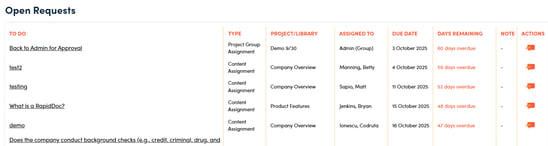
3. The Open Requests section reflects all of the items that you have assigned out to others.
Helpful Information:
-
The 'To Do' link takes you directly to the assignment.
-
The 'Type' column indicates the type of assignment.
-
The 'Project/Library' column indicates what project or library the assignment pertains to.
-
The 'Assigned To' column lists the name of the assignee.
-
'Due Date' and 'Days Remaining' provide information about when the assignment is due.
-
The 'Note' column will contain a note pad icon if the assignment has a note pertaining to it, you can hover on it, to see the note.
-
The bubble icons in the 'Actions' column, allow you to send a reminder to the assignee.