
1. Navigate to your global search bar at the top of any page in RocketDocs.

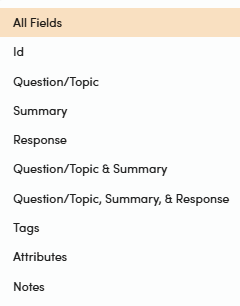
2. Enter your search terms and select the fields to search using the options to the right.

3. The next box gives you an option between Any Word and All Words.

-
Any Word - Will bring up results if they include any of the search term in your search phrase. For example, If you search for company history with 'Any Word' selected the results will include anything containing the word company, history or both. This will broaden the result set.
-
All Words - Will bring up results if they include all of the search terms in your search. For example, If you search for company history with 'All Words' selected the results will include anything containing both of the words. This is the same as searching for company + history. This will narrow the result set relative to the above approach.

4. Checking off the Synonyms check box will include search results that contain synonyms to the search terms. From company history for example the results might bring up content records that contain words like firm, organization, background in addition to the terms searched for. This will broaden the result set.
📋Tips:
-
Use quotation marks for an exact phrase search, this will narrow the result set further relative to the 'Any Word' and 'All Words' option.
-
Use the * at the end of a word to include various endings. For example searching for result* will include terms like results, resulting, resulted in your search results and will therefore broaden the search results.
-
Use the + and – symbols to include or exclude specific words.
-
Be careful with dashes, because the system will read them as a minus sign. Terms with dashes are typically best searched for using quotation marks.