
1. Navigate to your global search bar and use keywords to locate your record.

2. Click on the Question/Topic hyperlink in the content grid.

3. In the Content Details view, click the Initiate Review button to kick off the review workflow This will unlock the record for editing.
Some users, may not need to initiate a review to make minor changes to the content record. You will know that this is the case if both the Initiate Review and Save buttons are available and enabled. In this case, if the change is small enough that the full workflow review is not deemed required, you can go ahead and make the change without initiating a review.

4. Be sure to click Save to capture your changes if you would like to return to finish your work at a later time.

5. Click Save & Promote/Approve/Publish to move the content record through the content workflow.

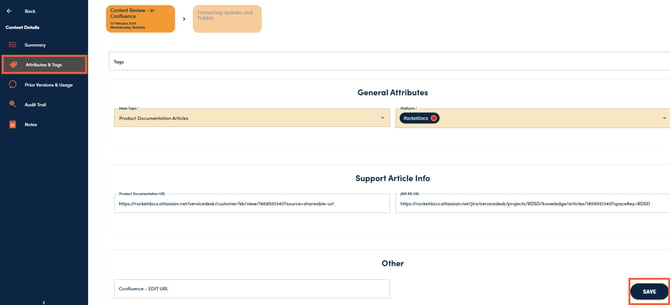
6. To update attributes, navigate to the Attributes & Tags tab. Make your changes and click Save.
📋Tips:
-
The Initiate Review function notifies user(s) in the first step of your workflow that they have been assigned a content record for review.
-
To initiate a review for a set of records, navigate to your global search or library view and select the appropriate records. You can isolate a set of records on the search results page using filters, to get the desired subset of content records to send for review. Once you select the content records, click on Initiate Review from the dropdown menu. Reviews can also be initiated on single records using this option or from the Content Details view for a specific record.


-
When initiating review on a large number of records, it is recommended to set the email batch time (in notification settings) to consolidate email notifications into a single message.
-
It is recommended that content owners review updates prior to publishing content records to the database. This allows the owner to make all final formatting changes and ensure consistent voice/messaging throughout your content.
-
Some users may have the ability to update content without initiating a review. If that is the case, you will see the Save and the Initiate Review buttons enabled on the Content Details page. This functionality is intended to enable certain users to make content changes outside of the workflow, for minor changes like typos that do not require a comprehensive workflow review. Please note, that to remove or replace an attachment response, you will need to initiate review because this is considered a material change that cannot be performed via the Quick Edit function. Alternatively, you can delete the contents in the Document Editor and click Save, to have the attachment removed automatically. This will enable you to upload a new attachment, without the need to initiate review.