
1. To locate the workflows navigate to Administration, Settings, then Project Settings on the left panel.
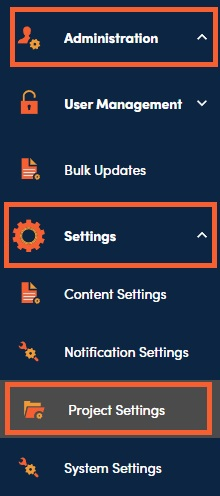
2. Locate the Project Types section. To add new workflow, select the + on right side.

3. Fill in the information in the form. You can add as many steps as you like by clicking on the + to the right of the Workflow Steps label. For each step you can select a name, an individual, a group (can be set up by a user with User Administration privilege), or a role that can perform the step, as well as what actions can be performed in the step.
A role enables you to assign a project to a user named in any contact system field (Project Lead) or a custom contact attribute that you create.
For each workflow step, you can enable the user to edit, approve, or publish a project by selecting the appropriate checkbox. The action will be able to be performed by a Project Administrator, one of the users named in the workflow step, or a user to whom the assigned user has delegated the step, via the reassign process. Click Save to complete the creation of your workflow.
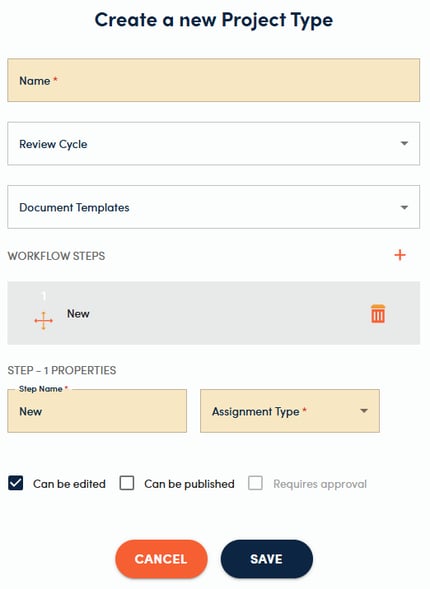
4. We recognize that your organization, its needs, and processes will evolve over time. You can edit a workflow, by navigating to the workflow in project settings and clicking on the name of the workflow, making the necessary adjustments, and saving your changes.
📋Workflow Settings:
This section allows the System Administrator to turn on/off enhanced workflows. Enhanced workflows can be turned on/off for content and projects separately. Enhanced workflows are set to on by default.
Unlike the original workflows, enhanced workflows offer enhanced functions that enable:
-
Assigning to a single named user within a workflow step.
-
Assigning to a specific user role within a workflow step (e.g., Project Lead or a person names in a custom contact attribute).
-
Assigning to a group within a workflow step as defined in Administration, User Management, then Groups.
-
A more streamlined and efficient review process where projects no longer revert to the Project Lead for reassignment between workflow steps.