General Information
The ability to import formatted content is available to Core users with Content Administration or Library Administration privileges.
Download a Template
1. To download a template, navigate to the content screen and click on the Export Word Template icon, outlined below.

You will be able to name the file, select the number of content records that you would like to import and click Yes. When prompted click Yes again to be taken to the Bulk Updates Module. Once there go to the line item that you just exported and click Download.
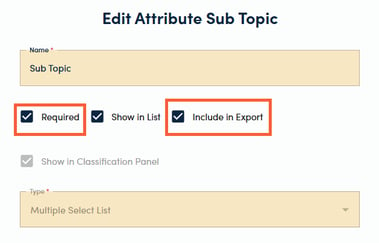
The attribute table will contain system fields (SME, Owner, Review Cycle, etc.), required custom attributes, and any attributes marked as Include in Export (in Content Settings).
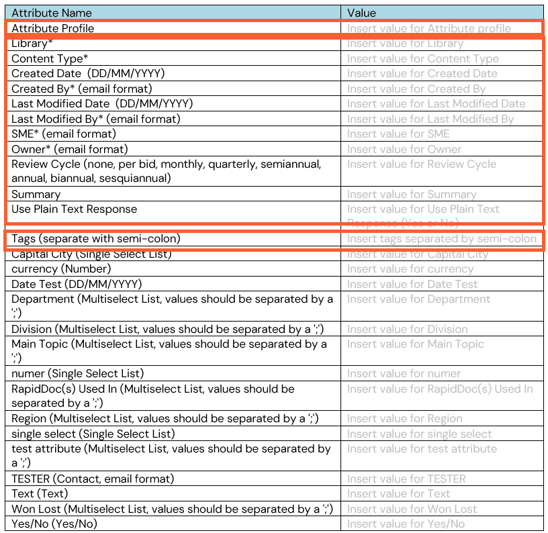
2. Users can tag content using Attribute Profiles, Attributes, Tags or a combination of the three.
Attribute Profiles - Allow users to tag content records with multiple attributes with a single selection.
If a single attribute profile is used across the entire template, the easiest way to apply the attribute profile to the entire template is by using the control replace function (Ctrl+G). Click Ctrl+G, Select Replace, type in “Insert Value for Attribute profile” in the to line, and the name of your attribute profile in the bottom line. Click replace all and Ok.
Attributes - Allow users to tag content records with structured attribute value selections in order to aid with searching and filtering.
Tags - Allow users to tag content records with free form text to aid with finding content records by adding additional search terms.
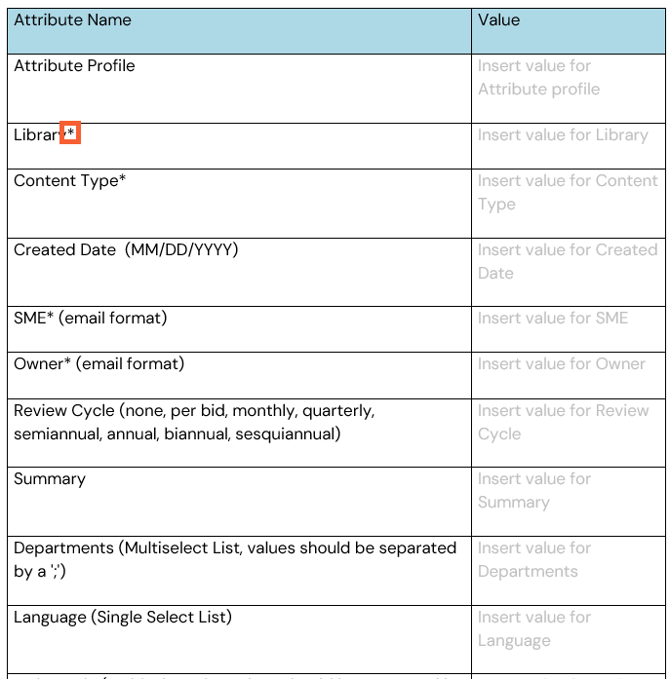
3. Required fields are marked with an asterisk.
4. If there is a conflict between an attribute value and a value in the attribute profile, the attribute will trump.
5. Values need to be exact but they do not need to be case sensitive.
6. Fill in the Question/Topic field.
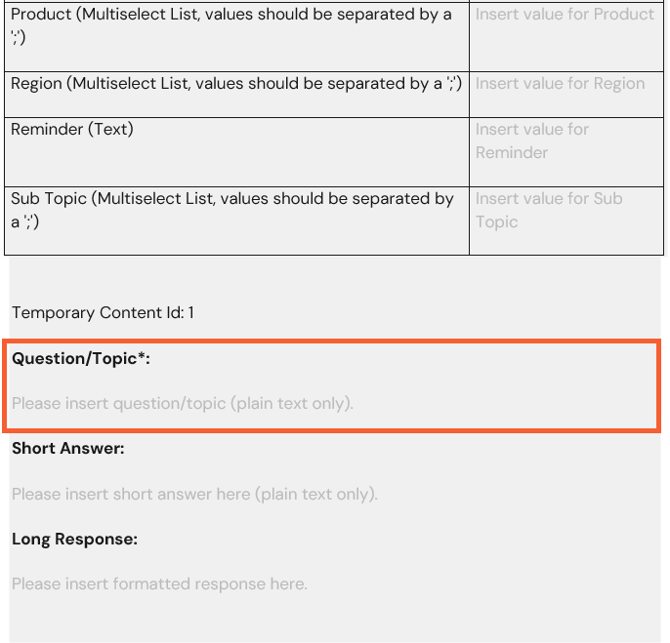
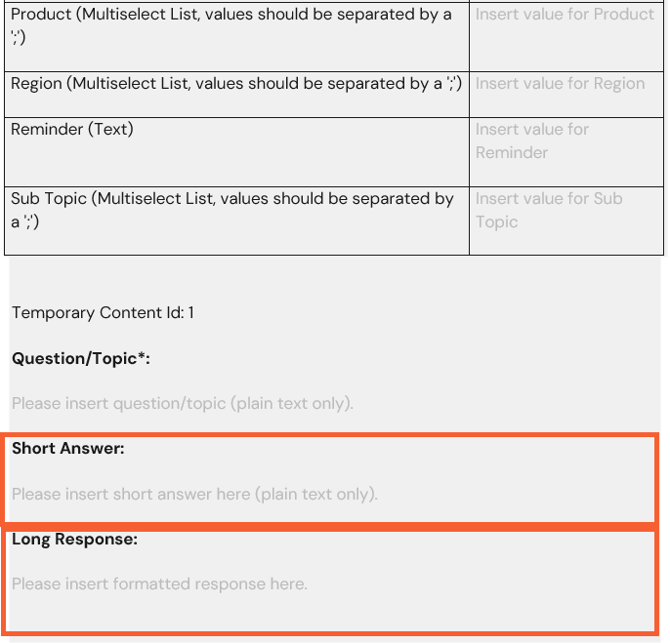
7. Fill in the Plain Text Response field or the Rich Text Response field.
-
The Plain Text Response field can accommodate plain text responses only.
-
The Rich Text Response field can accommodate responses with styles, graphics, tables, and charts.
Import File
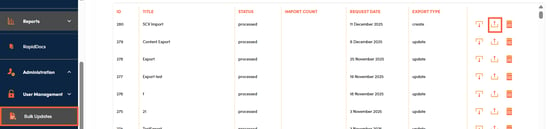
1. To import the template, return to the Bulk Updates area, click the Upload icon in the same line where you downloaded the template.
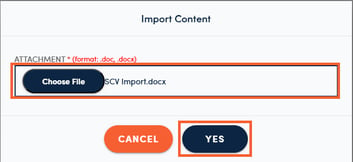
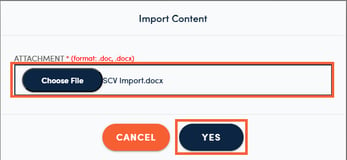
2. Select filled in file for import and click YES.
Error Logs
1. You will receive an error log via email, for any content records that fail to import.
2. You can navigate to the Bulk Updates module and click Download. The downloaded template will contain failed records only.
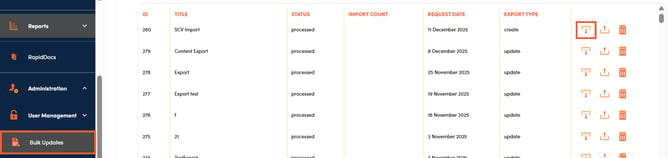
3. Once you have corrected the file, you can import the file again by navigating to Bulk Updates, clicking the Import icon, selecting the file and clicking YES.
Repeat steps 1-3 until all the content records have been imported.