
General Information
Parsing, Autofill, and Generative AI are available to RocketDocs Core users as part of the projects functionality. Generative AI is linked to an access privilege on the individual user and user groups accounts.
Parsing
1. Parsing is the method by which RocketDocs identifies questions within a project document.
2. The parsing function scans the project document and identifies questions through looking at a combination of words, formatting and punctuation.
3. Parsing can be performed on Word and Excel documents.
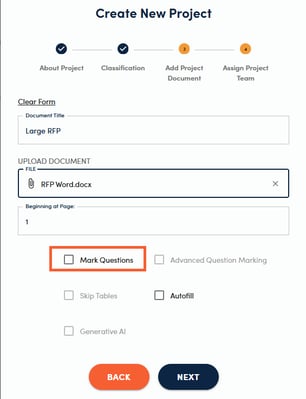
4. The parsing function can be performed on a project document through the Create New Project side drawer, which can be accessed by clicking the + sign above the project grid, following the prompts to create a project, and checking the Mark Questions checkbox.
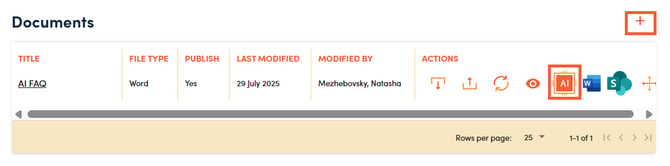
It can also be done during in the Add Project Document side drawer, by clicking the + sign above the Documents grid on the Project Summary page or by clicking the AI icon on an existing project document.

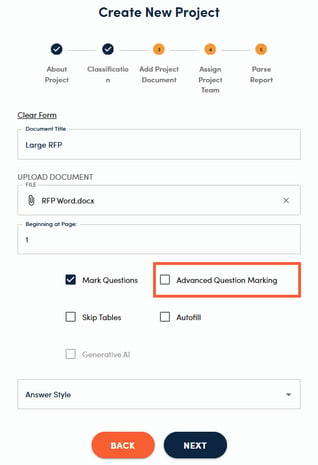
5. Advanced Question Marking is for questionnaires where prompts aren't phrased in an obvious format, like single-word entries such as "History" or "Experience," which makes them harder for RocketDocs to recognize. In these cases, RocketDocs leans more heavily on formatting rather than wording to identify what needs a response. For example, bulleted lists of specific items that require responses will each be marked as a separate question.
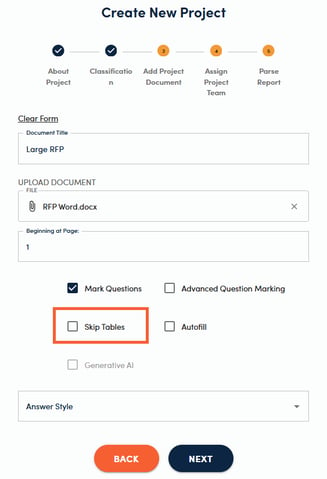
6. You can also choose the Skip Tables as an option in parsing, if information to complete the tables is not in RocketDocs.
Alternatively, if you are working in Word, you can opt to skip question marking, autofill and generative AI in this step by not selecting any of the check boxes above and clicking Next to finish adding your project. Once you are in the document and are logged into the LaunchPad, you can navigate to the Questions tab in the LaunchPad, highlight the question(s) that you would like to mark, and click Mark Questions.
You can also use this method to add questions in Word, if RocketDocs missed some questions during the question marking stage.
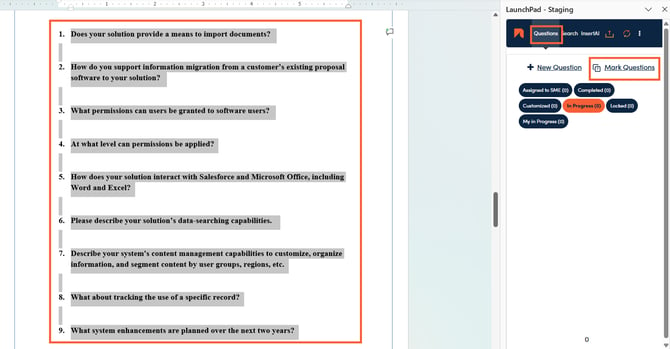
If you choose this option, you can skip the remaining steps and pick up in Step 3 of the Hierarchical Autofill article.
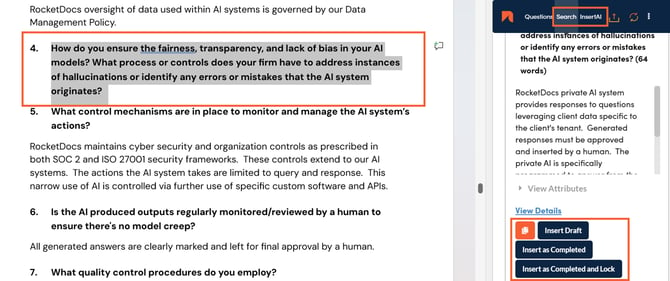
7. Lastly, you can go to the Search or Insert AI tabs, highlight a question to search for a response, and click on one of the insert options. At this point the response will be inserted and the question will be automatically added to the document.
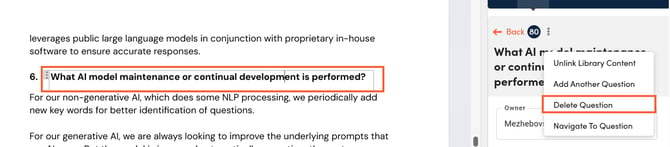
8. If the system incorrectly identifies a question, the questions can be deleted by clicking on the question in the document, clicking on the three dots next to the question in the LaunchPad, and selecting Delete Question.
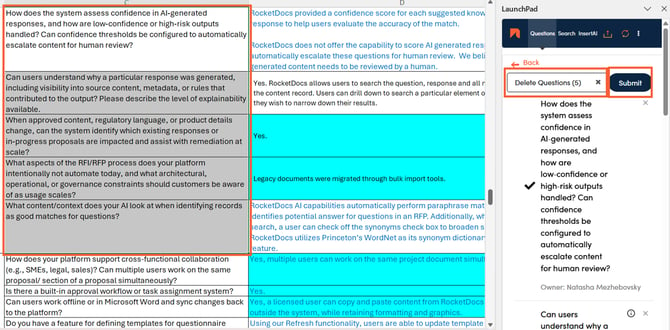
9. If the system incorrectly identified several questions, the questions can be deleted in bulk by selecting the area that contains the questions and selecting Delete Questions from the drop down at the top of the bulk actions side drawer, and clicking Submit.
You can remove one of the selected questions, from the list being actioned, by clicking on the gray x in the LaunchPad next to the question.
Autofill
1. Autofill is the functionality by which RocketDocs AI scours your content libraries to find responses to address the identified questions.
2. Autofill can be performed from the Create New Project or Create Project Document by selecting the Autofill checkbox, or from the Project Summary page by clicking on the AI icon followed by the Autofill checkbox.
You can skip checking off the Mark Questions checkbox by selecting the Autofill checkbox, because question marking is a prerequisite to autofill.
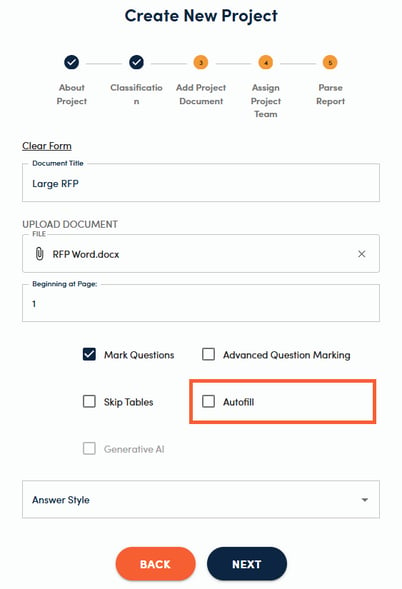
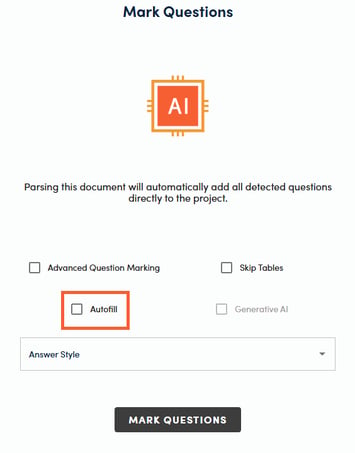
3. When Autofill is deployed, the system will use MLAPI to autofill responses. This is done by using Natural Language Processing to paraphrase the question to understand its meaning and score responses to find the best match response that meets or exceeds your selected threshold.
4. If several responses are tied, RocketDocs will use factors like status (published, under review, draft), usage count, last edited date, etc. as tie-breakers.
5. By default, RocketDocs will use all content that is visible to the current user to autofill the project document.
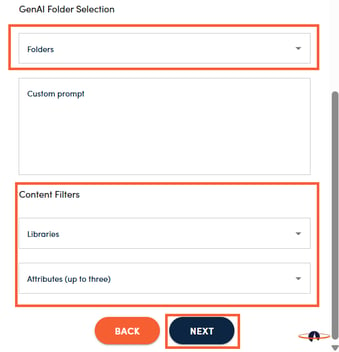
6. Users can apply filters to further narrow down the subset of content used by the Autofill in order to improve performance (more information on filtering is provided below) and clicking Next.
Private Generative AI
1. Generative AI can be enabled for customers by RocketDocs upon request.
2. Once enabled, the User Administrator can grant Generative AI access to users, at the individual user or user group levels.
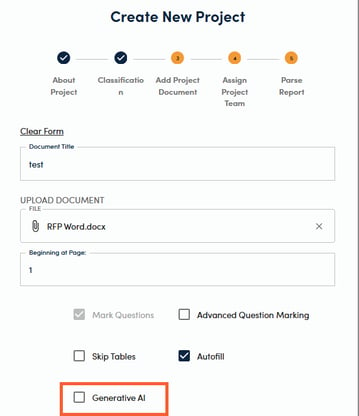
3. Permissioned users are able to choose whether or not to use Generative AI on a project document from the Create Project or Mark Questions side drawers, by checking off the Generative AI checkbox.
4. RocketDocs Generative AI uses an internal RAG (retrieval-augmented generation) based solution powered by PrivateGPT.
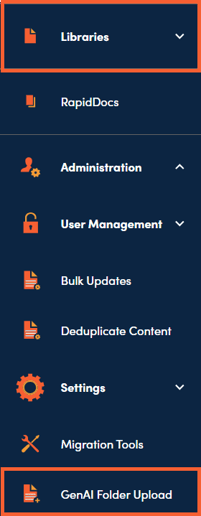
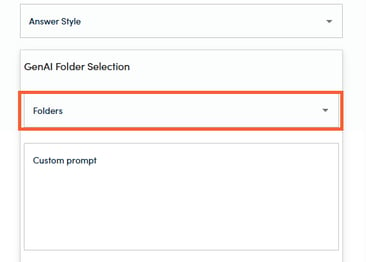
5. Generative AI will use information contained in the customer’s content repository to craft responses for questions that were not answered directly by existing database responses. In addition, it will use any selected folders from the GenAI Folder Upload module to generate responses.
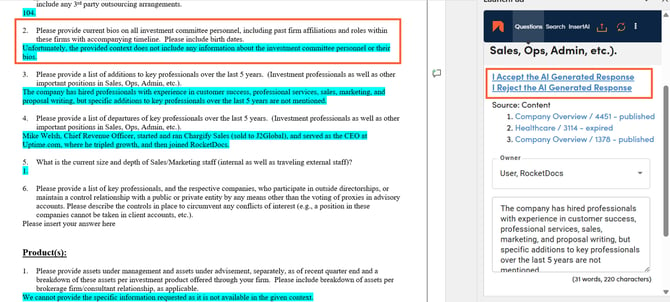
6. Generated responses are highlighted in turquois in the project document for a human review, until the I Accept the AI Generated Response link is clicked, at which point the highlighting will disappear.
If you click the I Reject the AI Generated Response the AI generated response will be removed from the proposal.
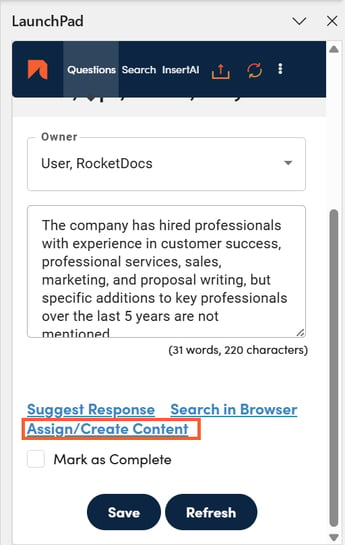
7. Generated responses do not become part of your content knowledgebase by default, but can be added to the library through the Assign/Create Content process.
8. Reviewers will be alerted to the fact that the response was AI-generated. This tag will persist on the content record until the content record undergoes your predefined workflow review/approval process, and is published for the first time. The audit trail for the AI generated content, will always show the record as being initially generated by AI.
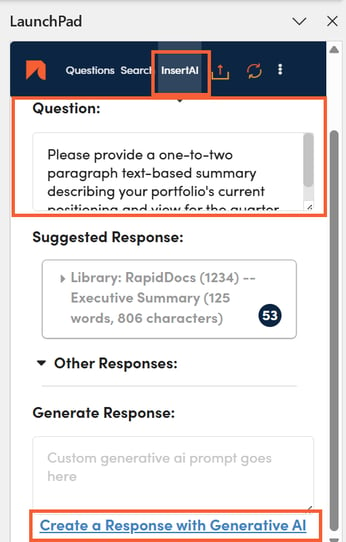
9. Users can also manually generate responses by going to the Insert AI tab in the LaunchPad, clicking on a question (or typing in a question) and clicking on the Create a Response with Generative AI hyperlink. This hyperlink can be clicked multiple times to generate different responses until the user sees one that they are happy with. Prior generated responses are retained until a response is chosen, so users can scroll through and compare them.
Filtering
1. Users can filter down content used by autofill and generative AI by libraries plus three additional attributes from the Create New Project and Mark Questions side drawers.
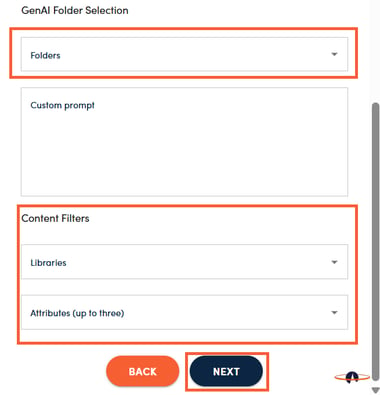
2. Not selecting any filters, will enable RocketDocs to use all content that the logged in user has access to.
3. Once the user has selected attributes to filter on, they will need to select values for each attribute.
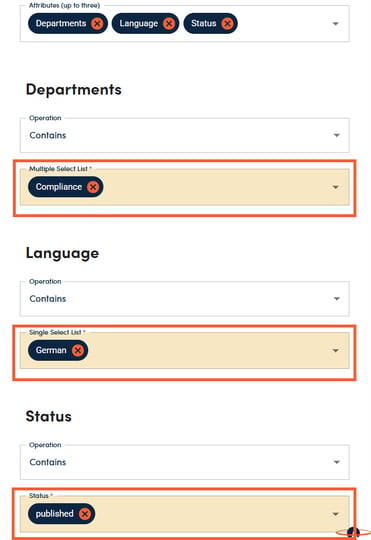
4. Using the Equals/Does not Equal operation is akin to saying that the system should look for content records that are tagged with (or are not tagged with) the precise attribute value or combination of attribute values selected (order does not matter).
5. Attribute filtering is additive and is comparable to applying filters on the content page.
6. For some attribute types, you will have an option of choosing the “contains” or “does not contain” operators. If you choose contains east and west for the Region attribute, the system will include anything that is tagged with either east, west or both (among other values).
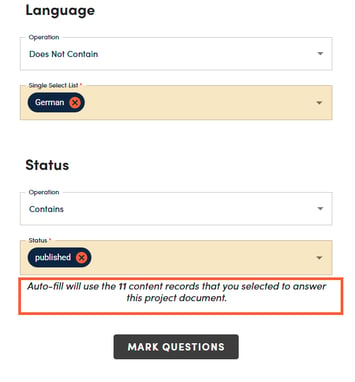
7. Once the filters have been set, RocketDocs will provide a count of content records that have been selected by the user for autofill. If the number does not seem accurate, you can go back and double check your filters.
Rethink Your Confidence Threshold
The tip: If your Autofill results feel underwhelming, check your match threshold before you check anything else. A setting that feels "safe" is often the one quietly working against you.
What's happening: Autofill scores each incoming question against your knowledgebase and inserts the best-matching response when the confidence score clears your selected threshold. Anything below that bar gets routed to generative AI as a fallback.
The common mistake: Many teams set the threshold high, assuming that's the more careful, quality-conscious choice. In practice, it does the opposite. A high threshold rejects good, previously-vetted, on-brand answers for being "not quite perfect" matches — and pushes those questions to generative AI instead, which is drafting from scratch rather than pulling from your approved content.
The fix: Lower the threshold slightly. This lets more questions get answered directly from your curated knowledgebase — content your team has already reviewed, approved, and trusted — and reserves generative AI for the genuine gaps, which is exactly where it adds the most value.
Bottom line: More knowledgebase, less generative fallback, isn't a looser standard — it's the more conservative one. Your vetted content is the safest source of truth in the system; the threshold should be tuned to use it as much as possible.