
Adding a Single Question
1. Download your questionnaire from RocketDocs, using one of the two methods below and Log in to LaunchPad.
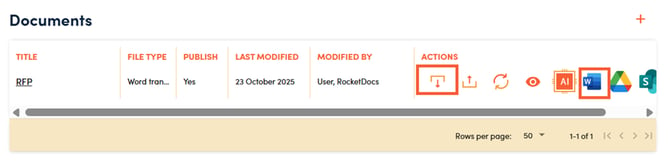
2. Click on the question you want to add to your Library. Your question will show up in the LaunchPad panel.
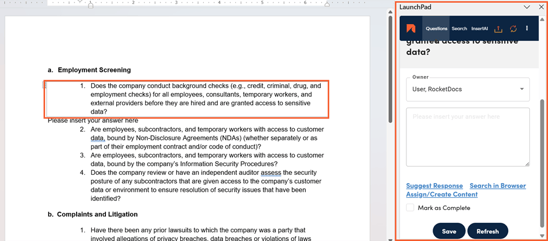
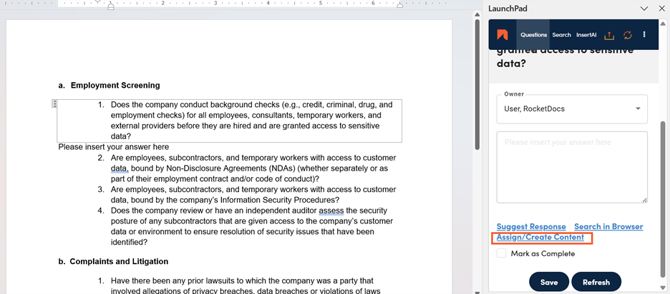
3. Click on the Assign/Create Content hyperlink.
4. Follow the prompts to fill in attributes on the first two panels.
-
Required fields will be highlighted in yellow.
-
Attribute Profiles are a way to add many attributes to your content record with a click of a button and can be a major source of efficiency. A Content Settings Administrator can set up Attribute Profiles in Content Settings.
If you have administrative privileges, you will have the option to Publish the content record directly into your knowledgebase, bypassing the workflow. This is for cases where you have a response that has already been verified, or that you know is accurate and up to date.
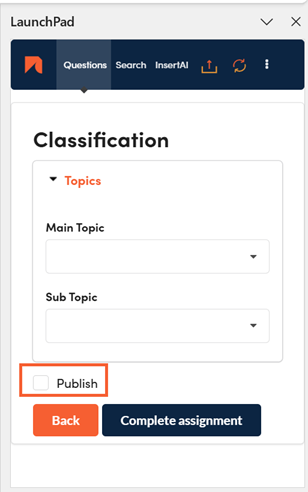
5. If you do not check off the Publish check box, your question will be assigned sequentially to users or user groups as dictated by your selected workflow (Content Type).
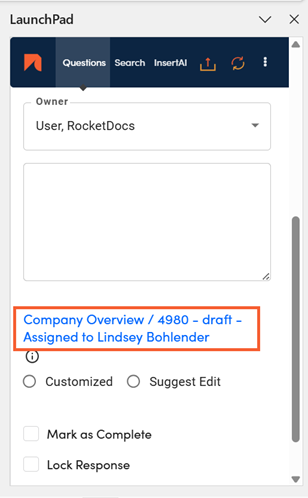
6. You will now see that your question is linked to a piece of new library content. You can always access the content record by clicking on this content record.
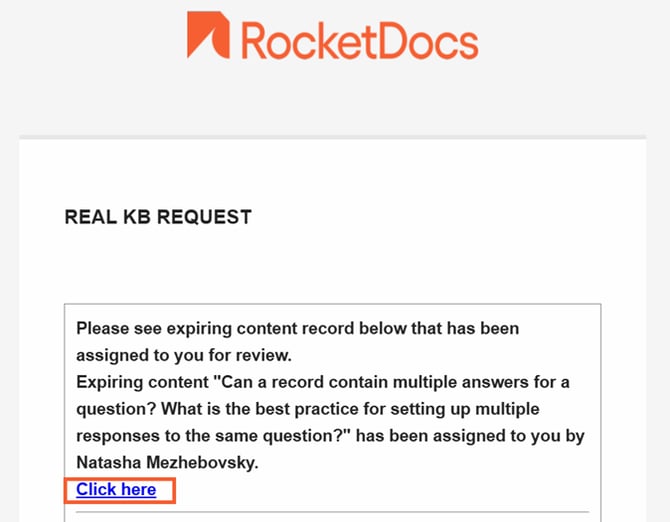
7. A notification email will be sent to the first and then each subsequent assignee or group of assignees in your workflow. The assignee will be able to click on the link, to access the content record to write or review the response.
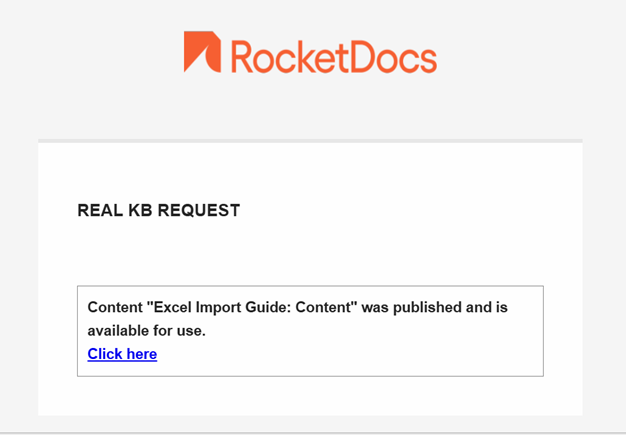
8. You will be notified when your assigned question(s) has been published and made available for use.
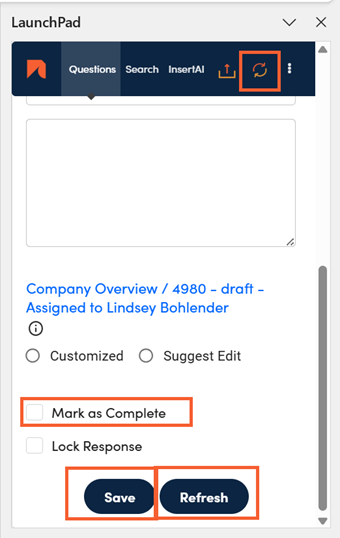
9. Once the response or responses have been completed you will need to Refresh each answer or the entire document to see the new responses appear in your questionnaire.
-
Click Refresh in one of the two locations below. The top refresh icon will refresh the entire questionnaire. The bottom refresh button will refresh just the question that you are currently on.
-
Your response will show up in the questionnaire, at which point you can click Mark as Completed and Save before moving to the next question.
Adding Multiple Questions
You can also assign/create questions in bulk as long as they share attributes. To assign/create questions in bulk:
1. Highlight the subset of questions you want to add to your library.
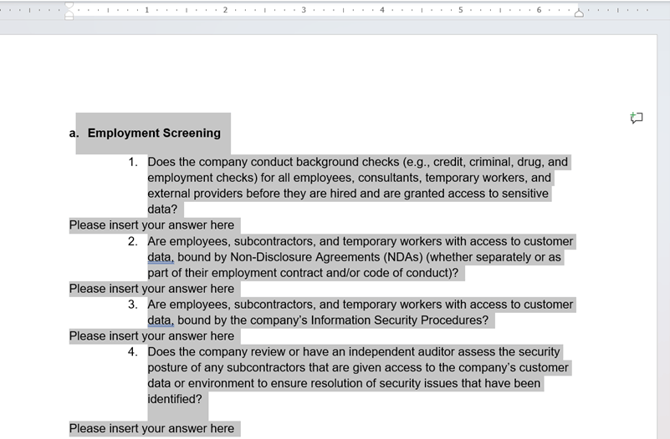
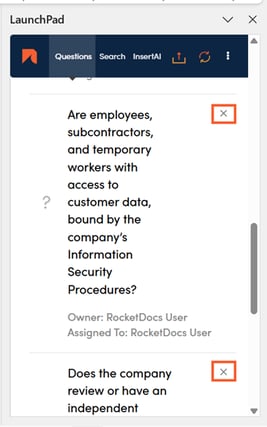
2. Navigate to the LaunchPad, here you will be able to remove any questions you do not intend to create/assign by clicking on the X next to them.
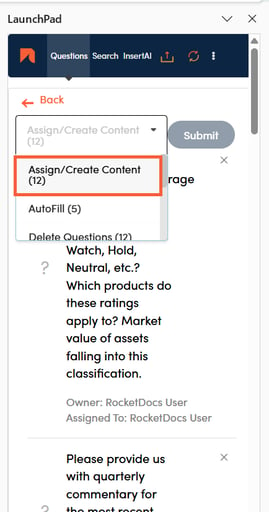
3. Select Assign/Create Content from the drop down menu and click Submit.
4. Other than selecting questions, the assignment process will mirror the process of adding/assigning individual questions exactly.