
Method 1
1. Parse document without auto filling or using generative AI.
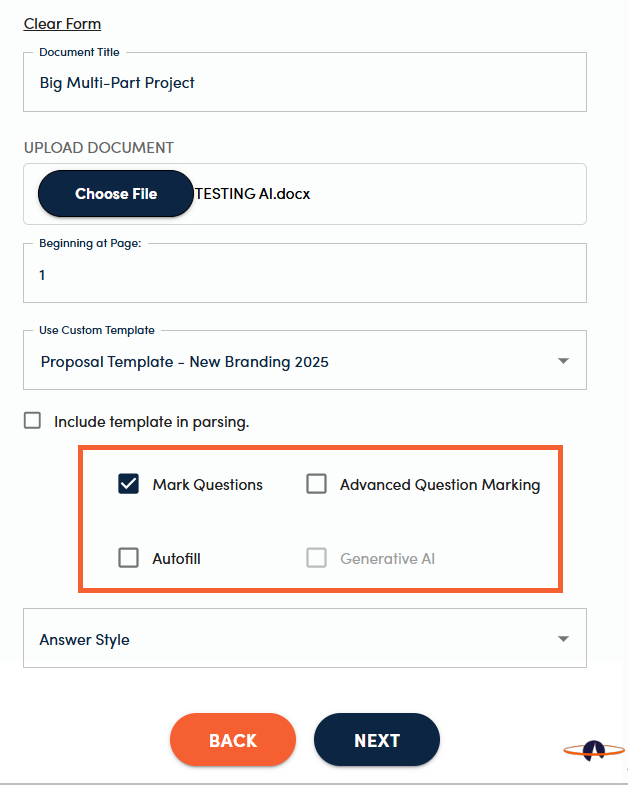
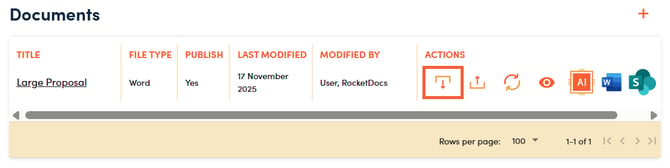
2. Download the project document.
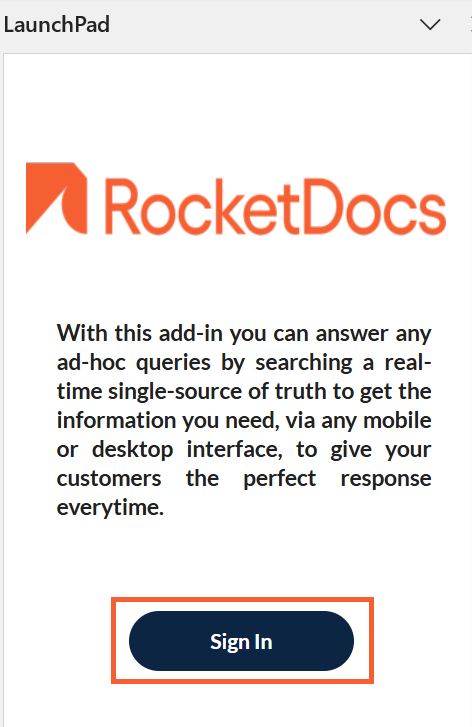
3. Once the document opens, click on the RocketDocs icon in the top right corner of Word/Excel and follow prompts to log into RocketDocs.
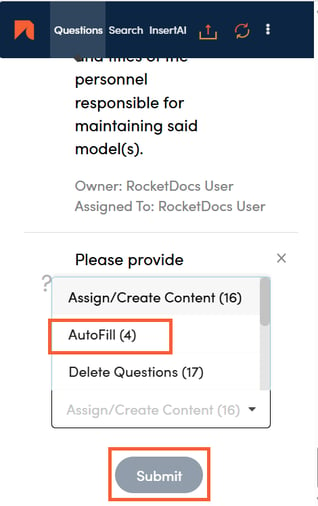
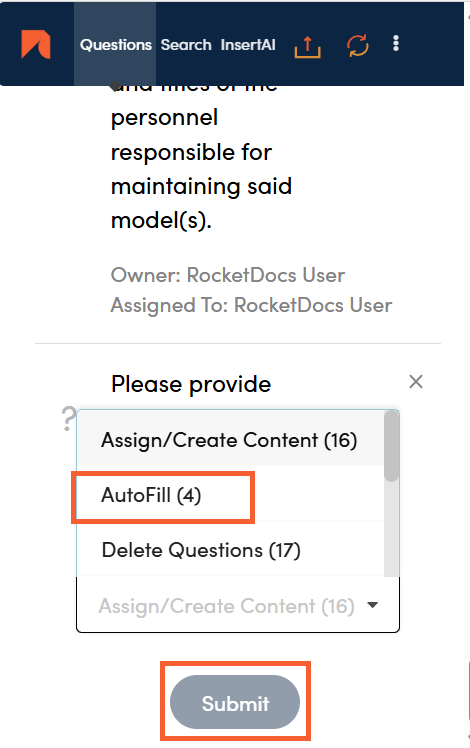
4. Highlight a section of your questionnaire (highlighted section should have at least 2 questions), select Autofill from the drop down at the bottom of the side drawer, and click Submit.
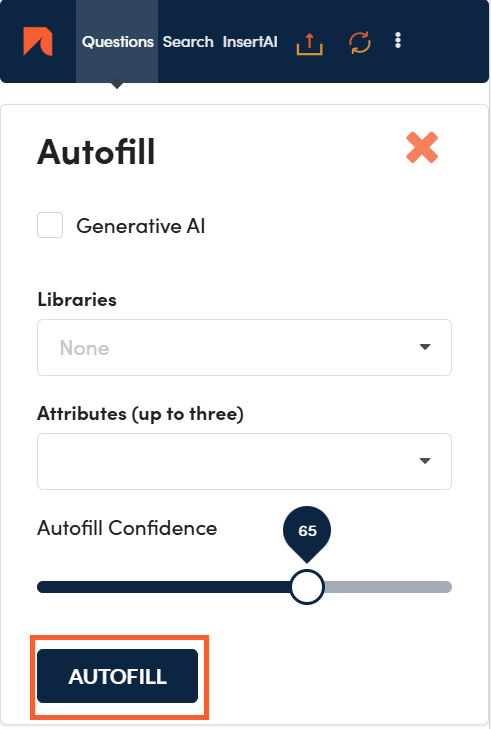
5. This will open a side drawer which allows you to make selections for the autofill and generative AI. Make selections and click Autofill.
6. Repeat process for other sections.
Method 2
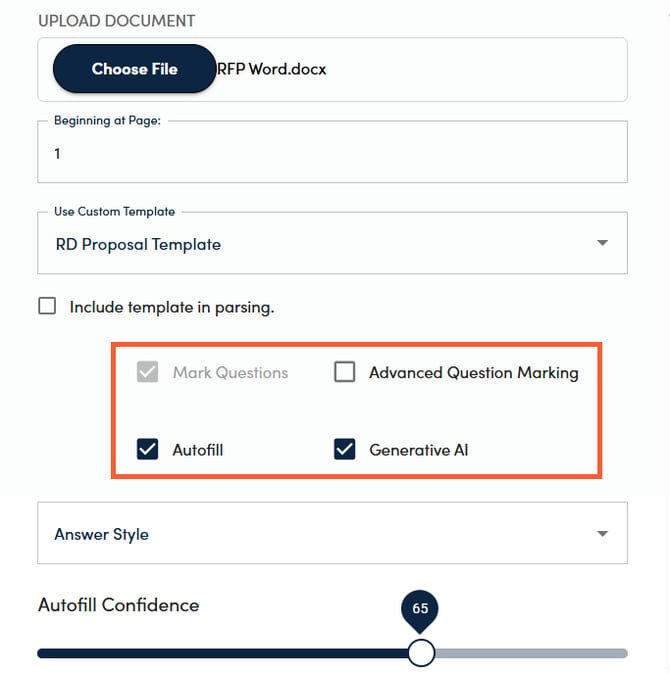
1. Parse document using autofill or autofill & generative AI.
2. Download the project document.
3. Once the document opens, click on the RocketDocs icon in the top right corner of Word/Excel and follow prompts to log into RocketDocs.
4. Highlight a section of your proposal that you want to use autofill or Generative AI on (highlighted section should have at least 2 questions, at least one without a response). Select Autofill from the drop down at the bottom of the side drawer, and click Submit.
5. This will open a side drawer that will allow you to make selections. Make your selections and click Autofill.
6. The system will not override anything that already has responses but will work on items that do not yet have responses.
For example, you can run the first round of parsing & autofill using published content only and then repeat including content that is expired.
7. Repeat, as necessary.