
To export your Content follow these steps:
1. Navigate to the RocketDocs Content Module and filter down to the subset of content that you would like to run deduplication on.
2. Use the field selector to select the ID column plus the fields you would like to include in your deduplication effort.

3. Export selected content into Excel.

How to identify the duplicates with Excel:
1. Review and identify the items from the duplicated that you would like to delete. If there are two duplicates it will mean deleting one of the rows/records. If there are more than two you may have to delete several rows/columns.
2. Highlight the rows that you identified for deletion using a different color. Then filter the ID column by that color.
3. Select all of the content IDs that you have identified for archiving or deletion in the Excel spreadsheet, right click and select copy.
Identify Duplicate Content records in RocketDocs
1. Select all of the content IDs that you have identified for archiving or deletion in the Excel spreadsheet, right click and select copy
2. Paste the IDs into the search screen, select ID in the drop down and click enter in the search bar to perform the search.

3. Select the checkboxes next to the resulting records.

4. Select Delete Content or Archive from the drop-down Menu.
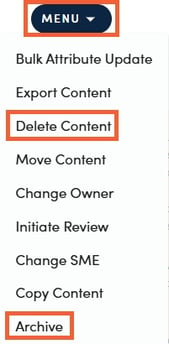
⚠️IMPORTANT:⚠️
Archived records can be restored by the content administrator. Deleted records cannot be restored.