
Installing Astro in RocketDocs
1. Once Generative AI is enabled in your tenant, any user with User Admin access will be able to grant this privilege on either the user level for individual users or at the group level for all members of a particular group.
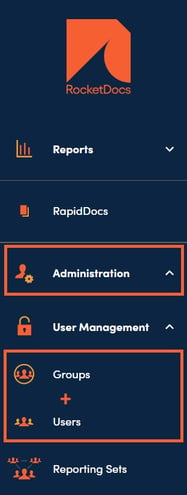
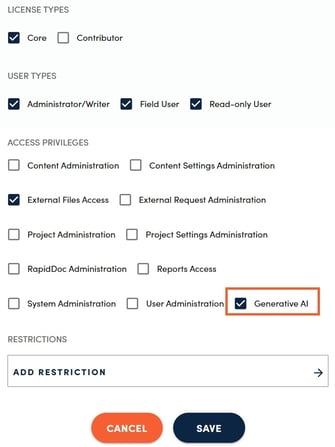
Using Astro in RocketDocs
1. Once Astro is enabled on the tenant and the user level, the logged in user will see the Astro icon in the bottom right corner of their screen as they navigate around RocketDocs.

2. When you click on the Astro icon, a chat window will open which will allow the user to ask Astro questions.
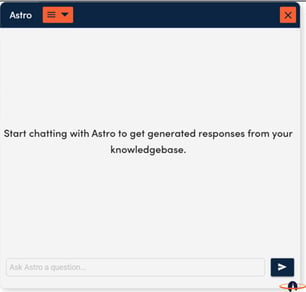
3. You can type in a question and click enter to receive a response. Astro will respond to each user based on the content that is available to them in their tenant. If Astro does not know, it will tell you that it does not know, rather than making up a response.
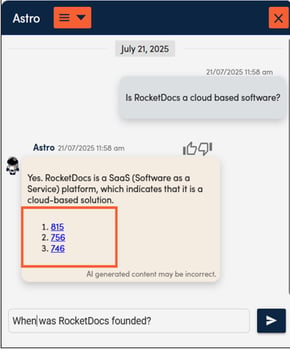
4. Responses from Astro will include links to content it used to craft its response. You can click on each of the hyperlinks to open the referenced content record in a new tab in your browser.
📋Other Navigation Tips:
-
Close the chat window by clicking the X in the top right of the chat window.
-
Resize the window by clicking on the borders of the window and moving them.
-
Move the window by clicking anywhere on the chat window and dragging it around your screen.
-
The system uses all the content that the user has access to plus the previous conversations you had with Astro since your last login. If you need to pivot from one subject to another, you can click the orange menu at the top left ≡ chat box and select 'Clear.'
-
Users can also click ‘Delete all messages’ to clear messages from the chat while retaining previous responses for context.