
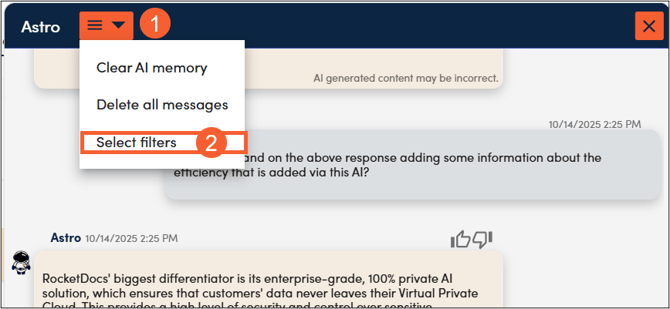
1. To add filters, navigate to the menu icon in the top left of the Astro in RocketDocs and click select ‘Select filters.’
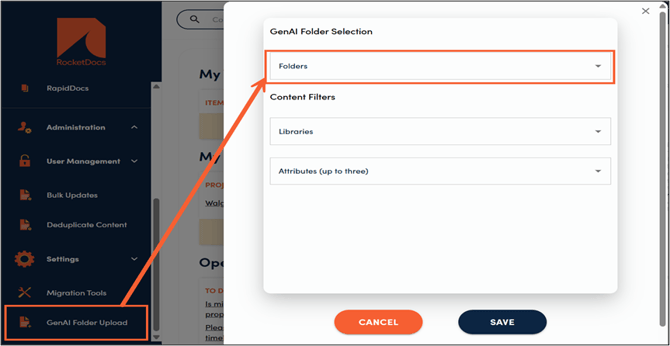
2. Select one or more GenAI folders you would like Astro to use. If no folders are selected, no AI folders will be used.
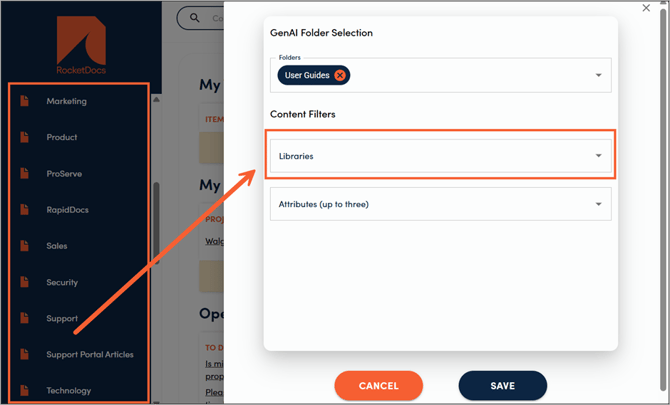
3. Select one or more Libraries that you would like Astro to use in answering your questions. If no Libraries are selected, all libraries that the user has access to will be used.
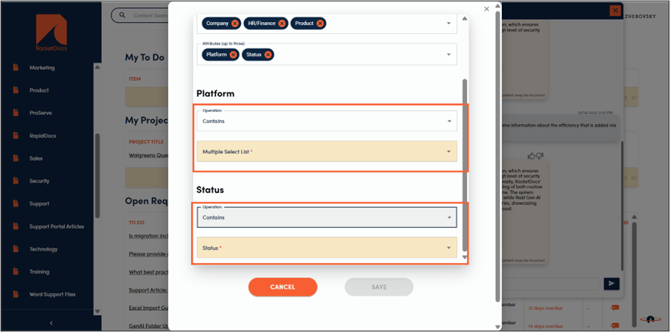
4. Select up to three additional attributes that you would like to filter content by.
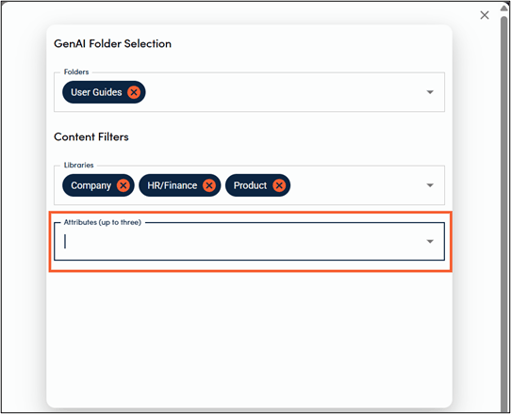
5. Then select operations and values for each of the selected attributes.
-
Attribute filtering is additive and is comparable to applying filters on the content page.
-
Using Equals/Does not Equal operation is akin to saying that the system should look for content records that are tagged with (or are not tagged with) the precise attribute value or combination of attribute values selected (order does not matter).
-
For some attribute types, you will have an option of choosing the “contains” or “does not contain” operators. If you choose contains East and West for the Region attribute, the system will include anything that is tagged with either east, west or both (among other values).
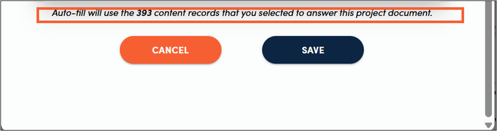
6. Once the filters have been set, Astro will provide a count of content records that have been selected for use.
7. Click ‘Save’ to apply filters or ‘Cancel’ to return back to Astro, reverting filters back to the way they were following the prior save.
8. All filters will remain in place until the user modifies them.