
1. Click the following link in Chrome: https://chrome.google.com/webstore/search/rocketvault?hl=en
2. Click Add to Chrome or Get Extension, and follow prompts.

3. Click the Extensions icon to access the RocketVault or to pin it to the Navigation bar.
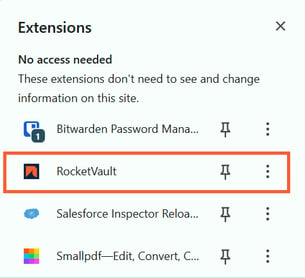
4. If you pin RocketVault to the Navigation bar, click on the RocketVault icon, in the top right corner of the screen to access RocketVault. If you choose not to, you will use the Extensions icon to access the RocketVault going forward.
5. Fill in your company name that is used in the RocketDocs URL on the log in screen and click Continue.
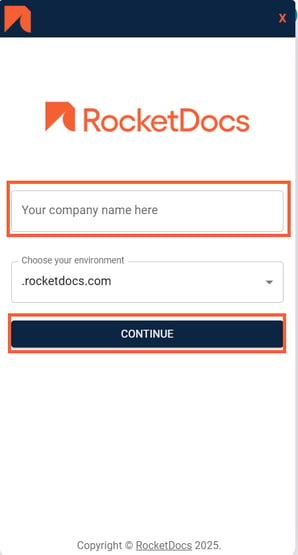
6. You may have the option to sign in directly, via SSO, or both. Select your preferred log in option.
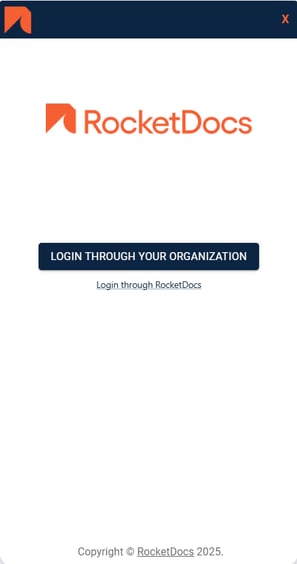
7. If you selected to Log in Through Your Organization, follow the steps as directed on screen making sure that you are logged in to your organization’s RocketDocs instance.
8. If you select to Login through RocketDocs, use your RocketDocs user name and password to log in to RocketVault, making sure that you are logged in to your organization’s RocketDocs instance.