
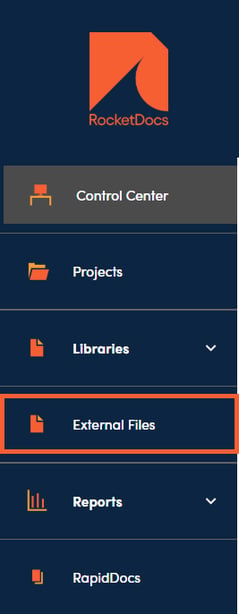
1. You will be able access the External Files module from the left side navigation panel if you have been granted access to External Files.
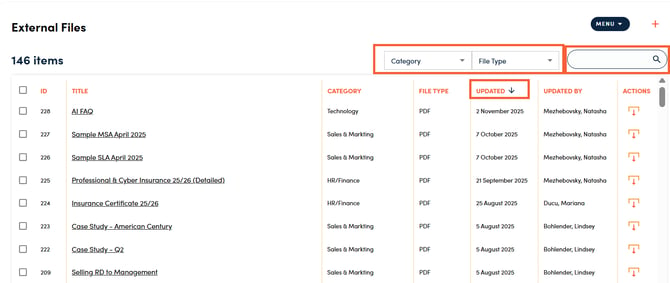
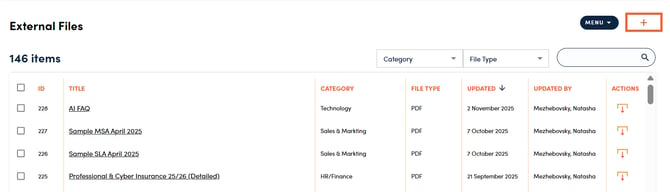
2. Once in External Files you can filter by Category or File Type, search for a document using the search bar, and sort by any column by clicking on the column header.
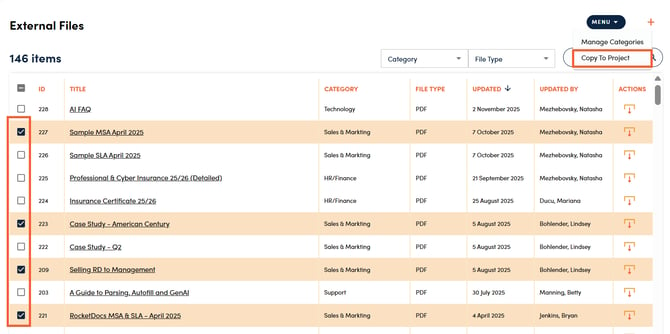
3. You can add files to a project that you are working on by checking off the boxes next to the file you want to add, navigating to the Menu, and selecting Copy to Project.
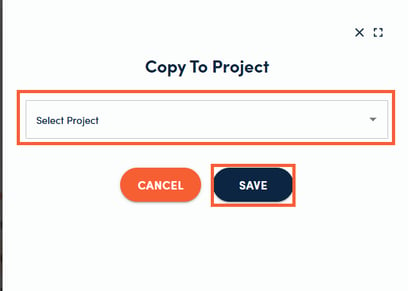
4. You will then be able to select a project from a list of active projects that you are working. Once you have selected a project, click Save and the files you selected will be added to the project.
Managing External Files
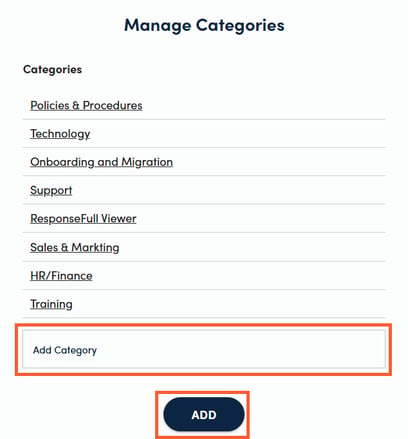
1. Users with Content Administrative access will be able to manage External Files categories that can be used to organize files by navigating to the Menu and selecting Manage Categories.

2. From the Manage Categories side drawer, you will be able to add a new category by typing in the name of a category in the Add Category box and clicking Save. You will also be able to drag and drop categories to determine the order that they will appear in.
3. You will be able to add an External File by clicking + above the External Files table.
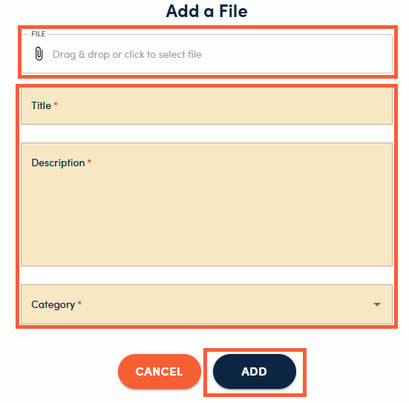
4. Once you are brought to the Add a File side drawer, you will need to select a file, fill out the required fields, and click Add.
Note:
In the upcoming months, RocketDocs will be retiring External Files in favor of a Unified Content Management approach. For more information on what you need to do to transition your External Files, please refer to this article on our new Unified Content Management (Content Uses) approach.