1. Reach out to CSM to get the initial connection set up in the database.
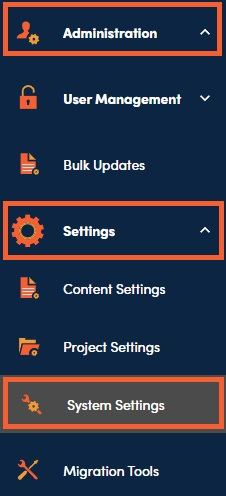
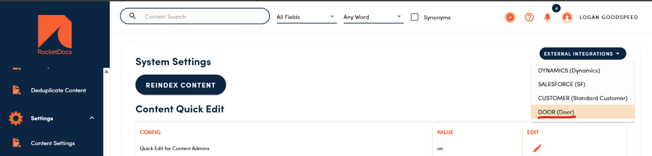
2. In RocketDocs go to Administration, Settings, System Settings, External Systems, then Door Connection.
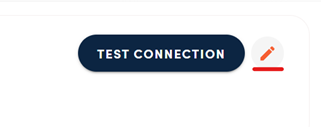
3. Once on the Door Settings screen, click the pencil icon to edit the content filter details. The filter can be set to either a specific content library, or a specific value for a selected content attribute. Only content that matches the filter will be available to pull into Door.
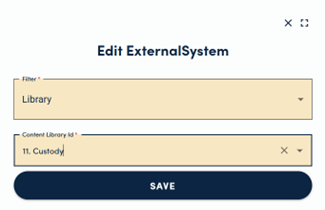
In DOOR:
1. Navigate to the content library integration page: Menu, Integration, then Library.
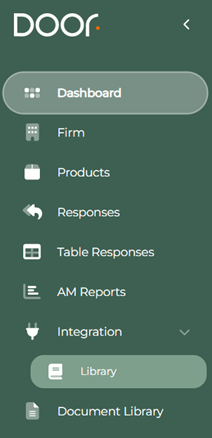
2. Once there, select RocetDocs as the content library, and enter the base URL for your RocketDocs site. The base URL should not include https or www, simply “yoursite.rocketdocs.com”. Your site name can be found in the URL when you access RocketDocs, for example:
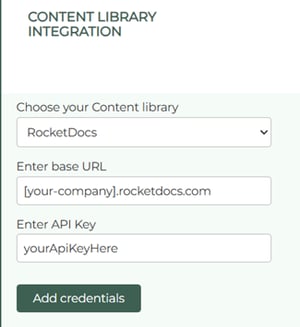
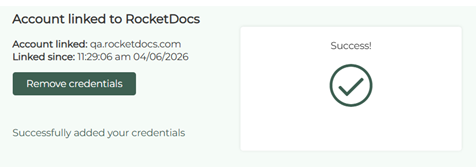
3. When you have entered the base URL, enter the API key provided to you by your RocketDocs CSM into the API Key input and press add credentials. Successful entry will result in the following screen: