
1. Reach out to your CSM if you would like to have this feature enabled.
2. To implement the new sharepoint with just Sites.Selected, you’ll need to add the new Azure Entra ID app. The link below will allow your Microsoft admin to grant admin consent for the necessary privileges. Make sure to replace <your-tenant-here> with your RocketDocs tenant name.
-
https://login.microsoftonline.com/organizations/adminconsent?client_id=bc2431d6-496c-4b84-9b71-98740e95021b&redirect_uri=https://<your-tenant-here>.rocketdocs.com.
3. The following permissions will be granted from following the previous step.
-
Sites.FullControl.All
-
Sites.Read.All
-
Sites.Selected
📋 NOTE:
After your Microsoft admin completes steps 4-6, the admin can revoke the Sites.FullControl.All and the Sites.Read.All. See steps 7-9 for how. You must keep Sites.Selected admin consent!
4. In the RocketDocs app, you’ll need to go to System Settings, and scroll down to the SharePoint Category.

5. Then click the edit and you’ll need to login to your Microsoft as a Global admin.
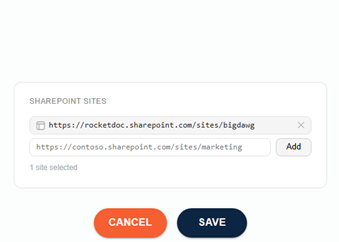
6. Then you’ll put in the SharePoint site(s) you want and click add, and then save.
-
You should get a notification saying how many sites were successful.

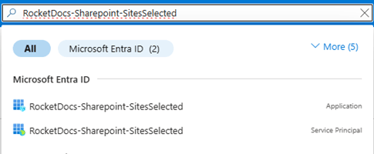
7. To revoke admin consent for Sites.FullControl.All and Sites.Read.All, navigate to your azure, and search for “RocketDocs-Sharepoint-SitesSelected” and choose the “Service Principal” option.
8. Open the manage tab on the left, and open the Security tab and choose permissions.
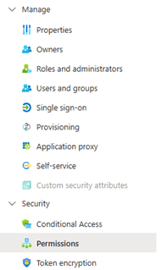
9. It should default to the admin consent tab. Click the menu to the right of Sites.FullControl.All and Sites.Read.All and choose “revoke permission”.

10. Then confirm.

11. When you click the SharePoint logo, the Application permission Sites.Selected will be used and will load those previously selected sites.
