
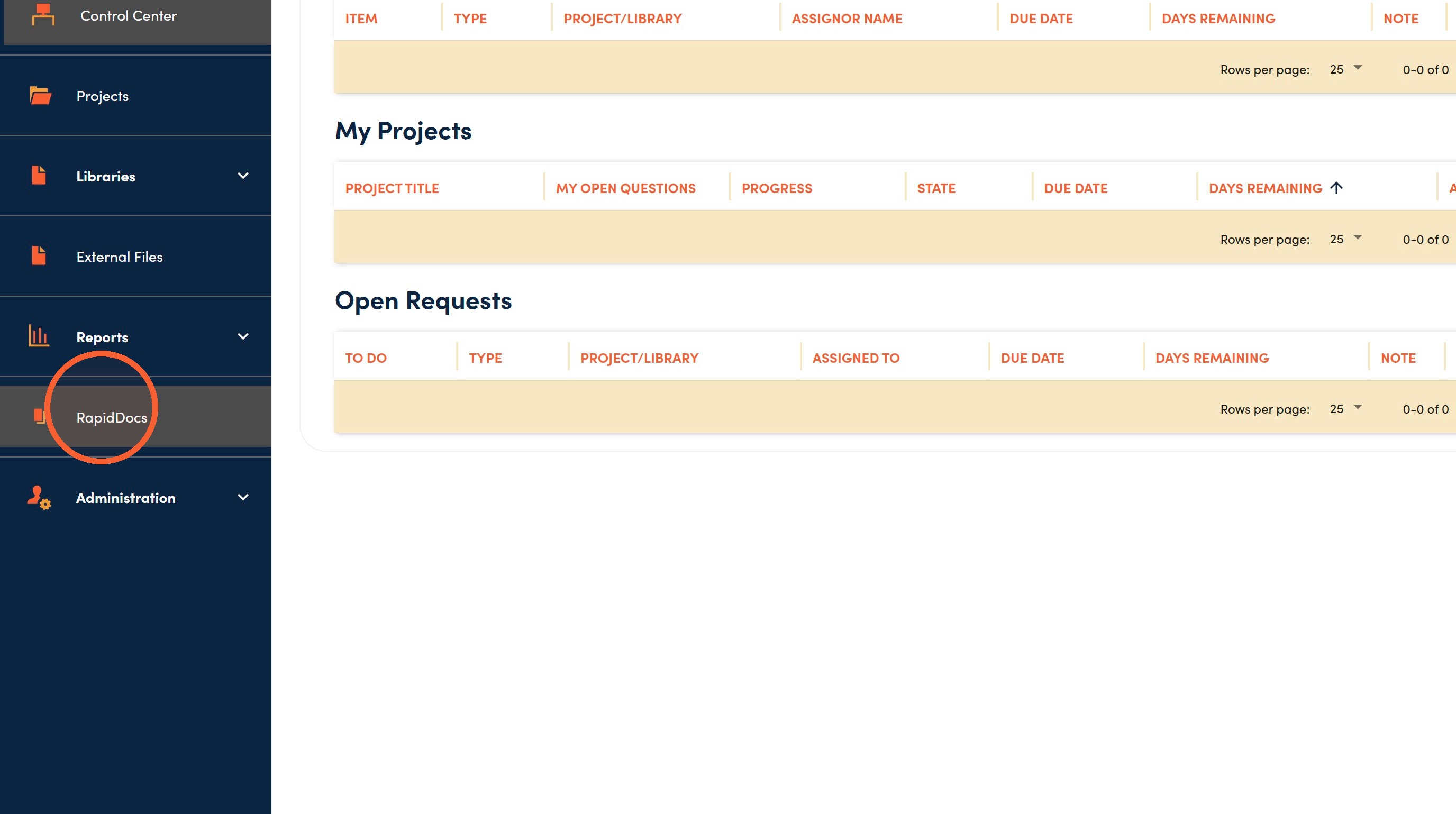
1. Navigate to your RocketDocs site then click RapidDocs.
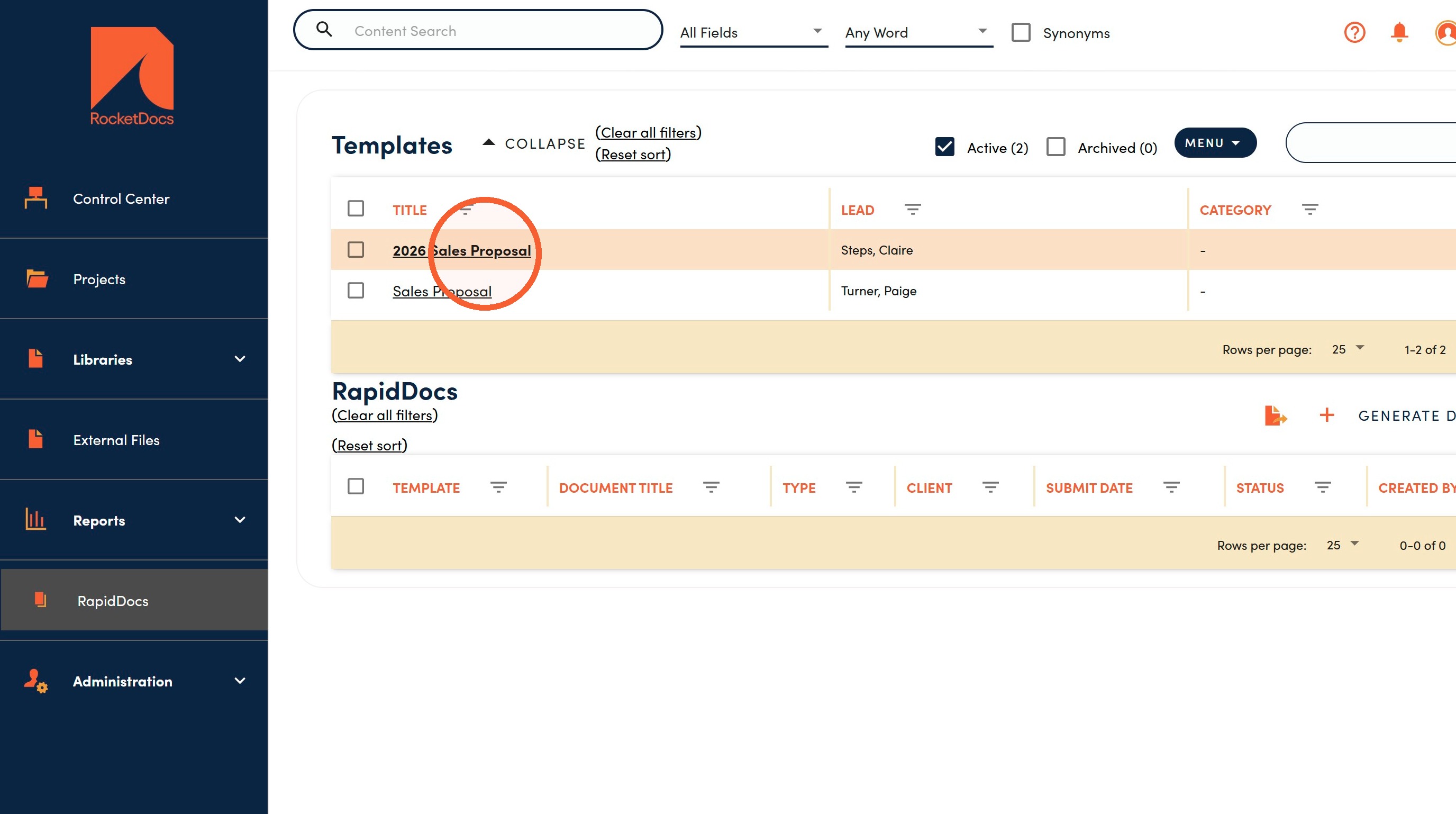
2. Click the template you want to edit.
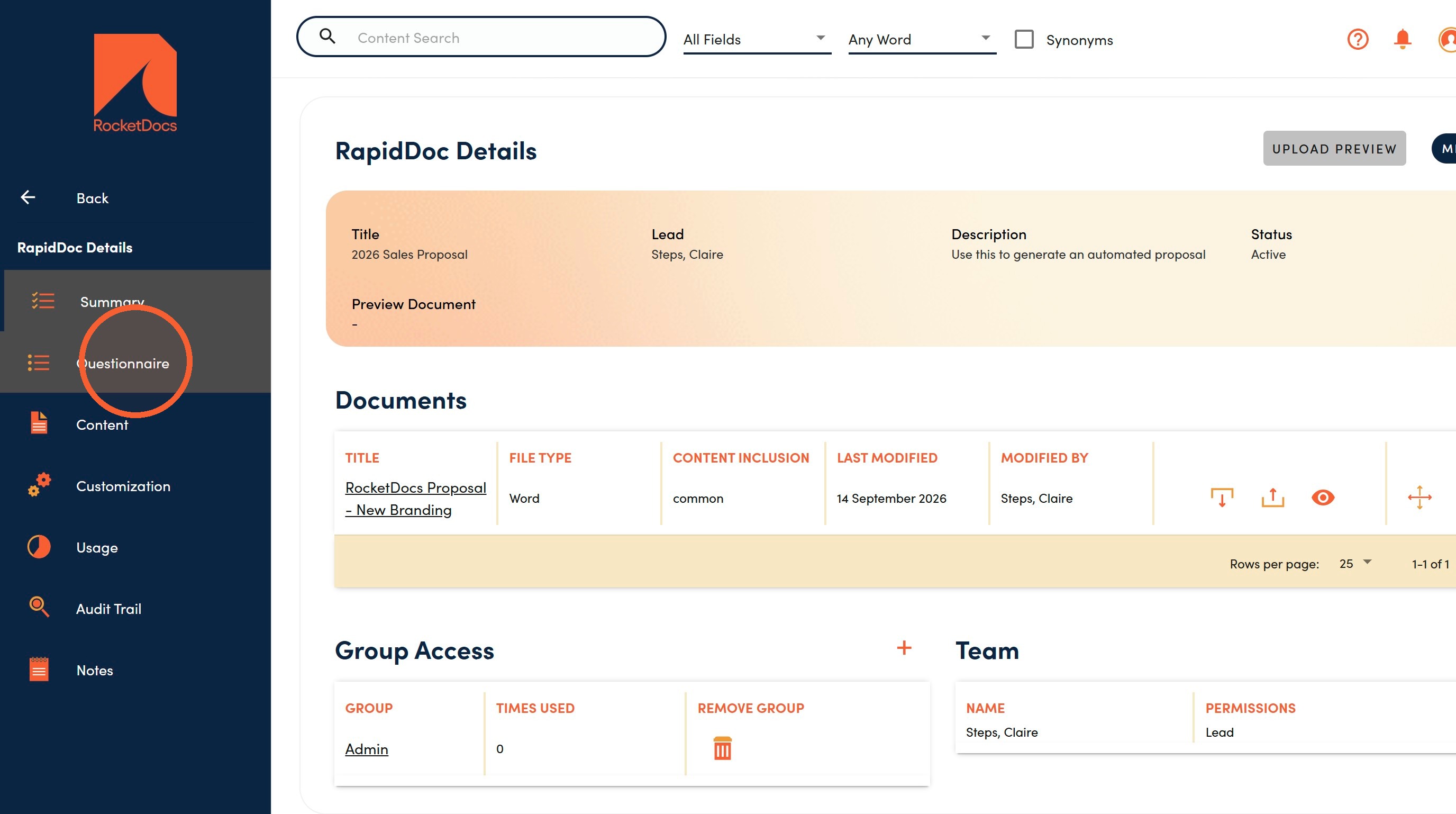
3. Click the Questionnaire tab.
Sections
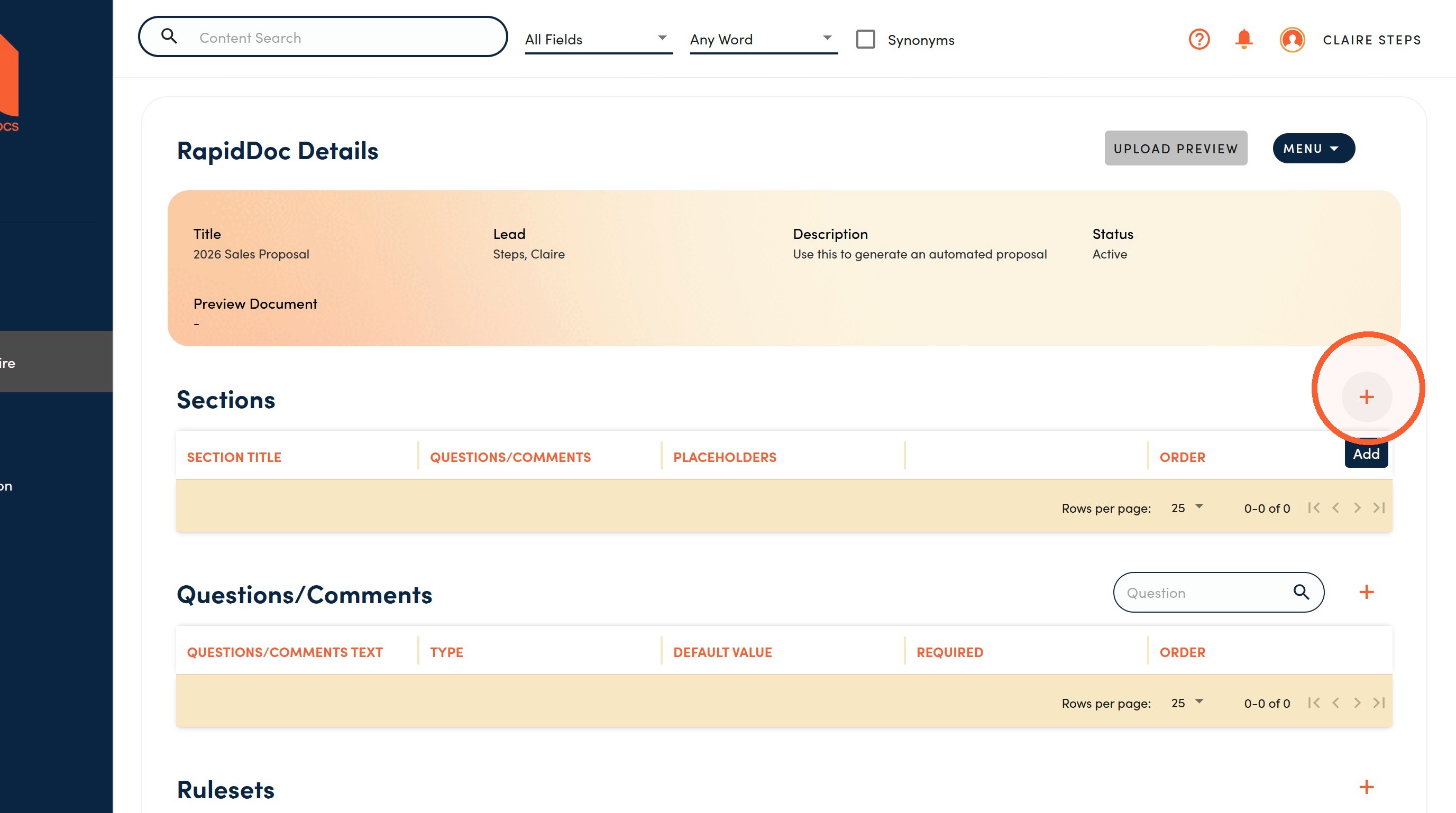
4. Click Add in the Sections area.
Sections allow you to configure the layout of the form your end users will complete to decide which portions of the document or PowerPoint should be included. There must be at least one section.
5. Enter a Title. This will appear at the top of the page your end user sees when responding to the Questionnaire.
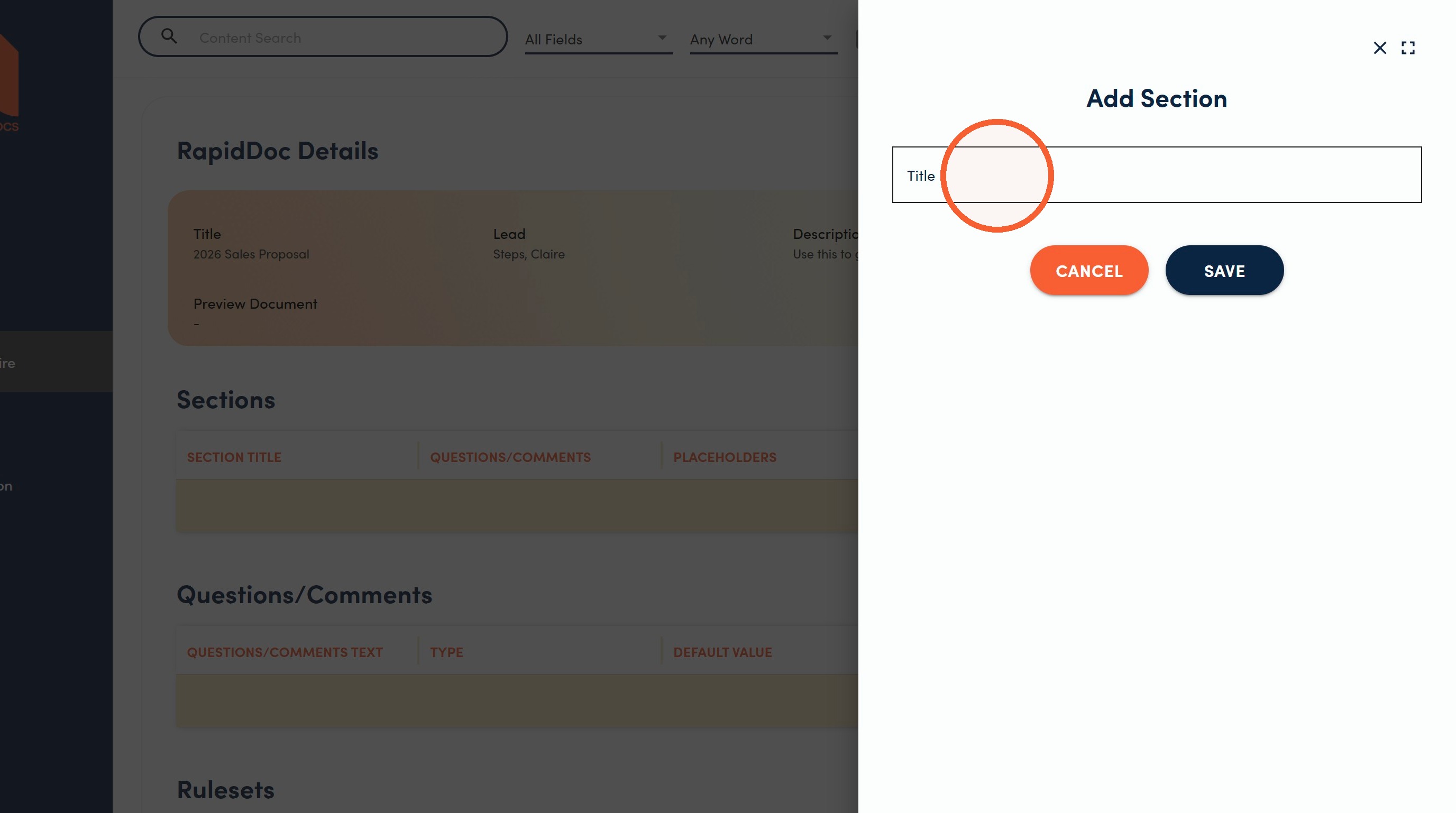
6. Click Save.
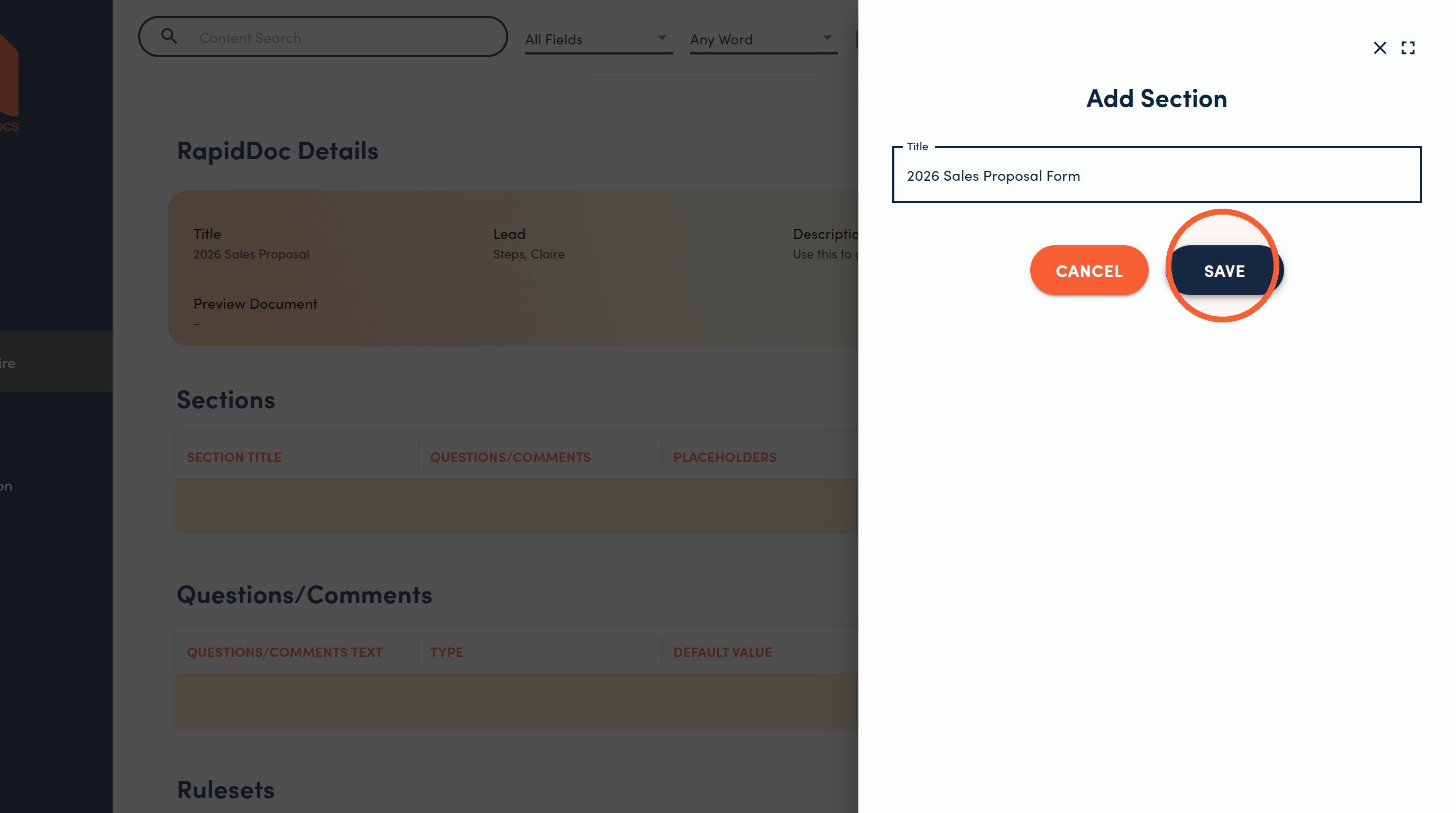
Questions/ Comments
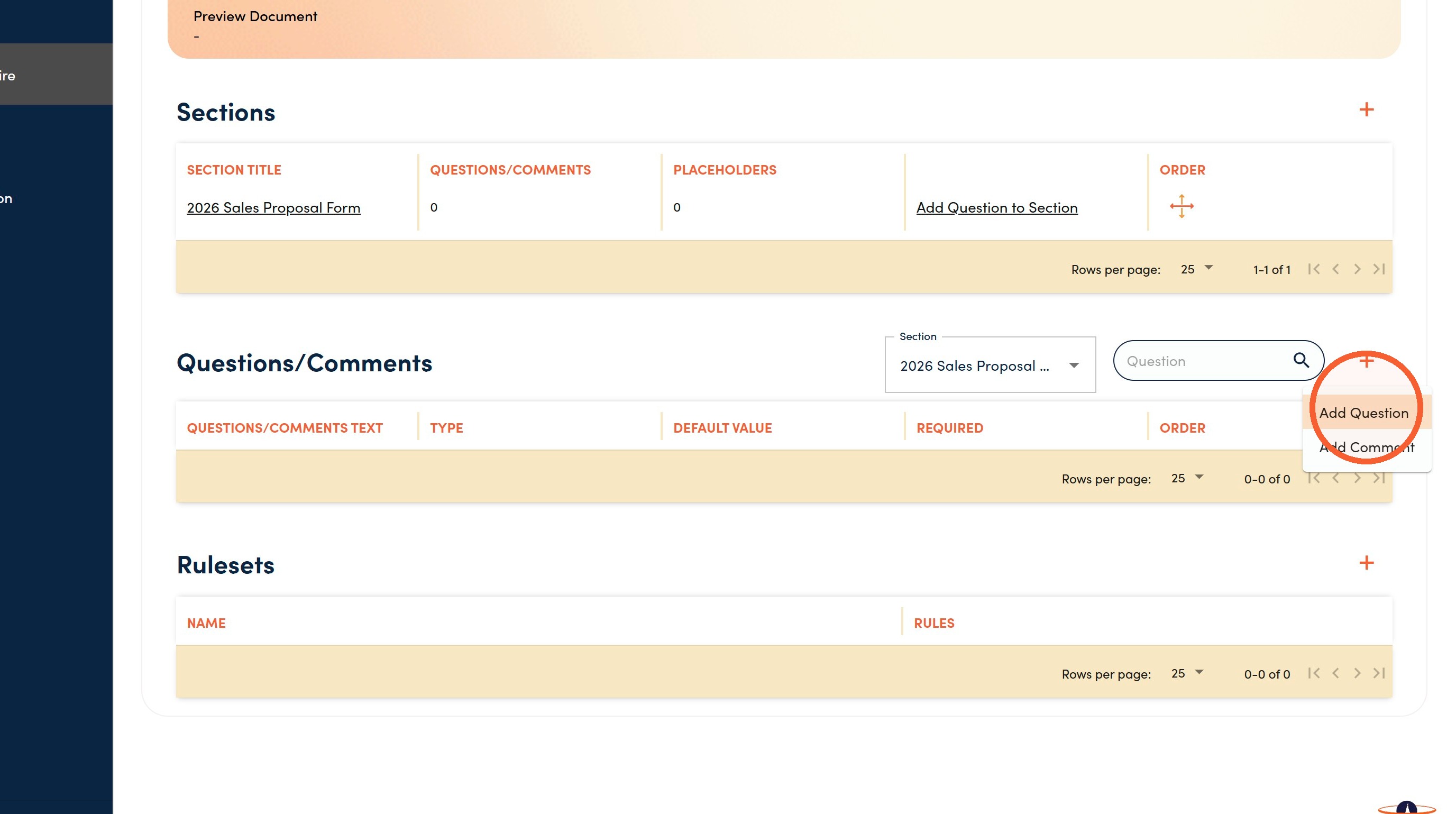
7. There must be a minimum of one question to generate a RapidDoc.
Click Add, the choose Add Question or Add Comment. Questions provide the options for your end user to choose from, and Comments allow you to add additional detail to the Questionnaire.
8. Enter the Question text.
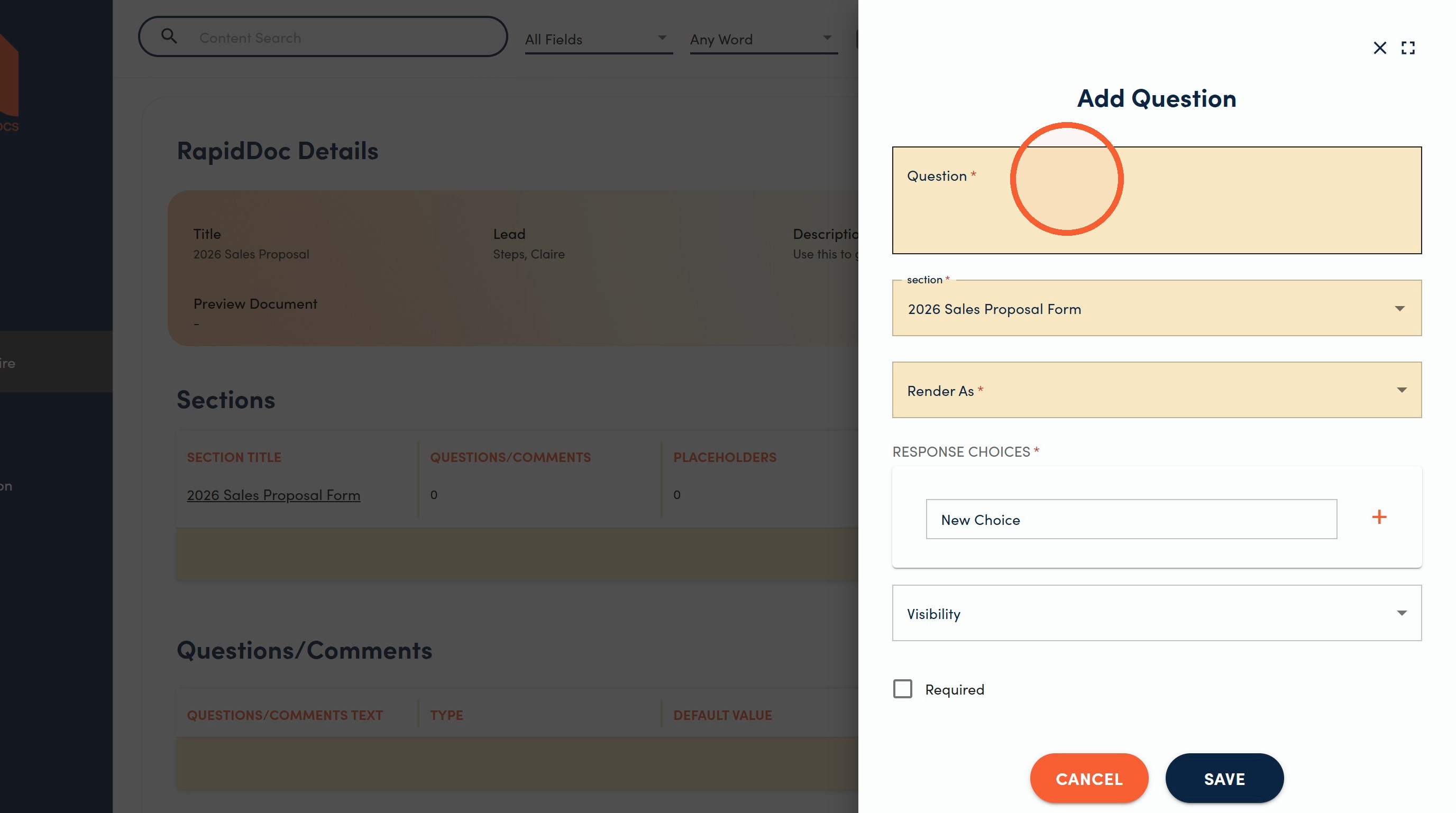
9. Click Render As* to select the field type for the selection options.
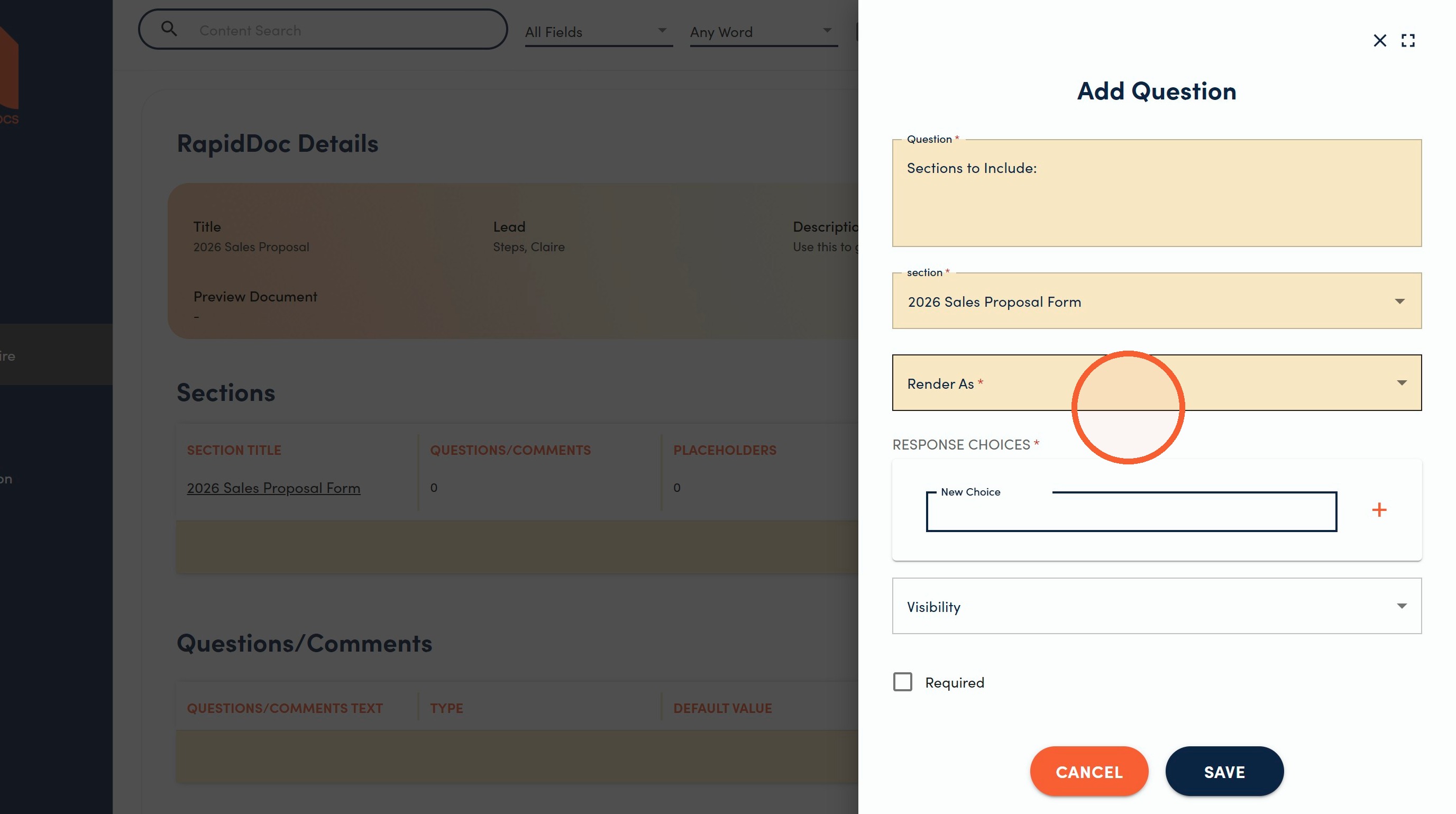
10. Choose from the available field types for your response options.
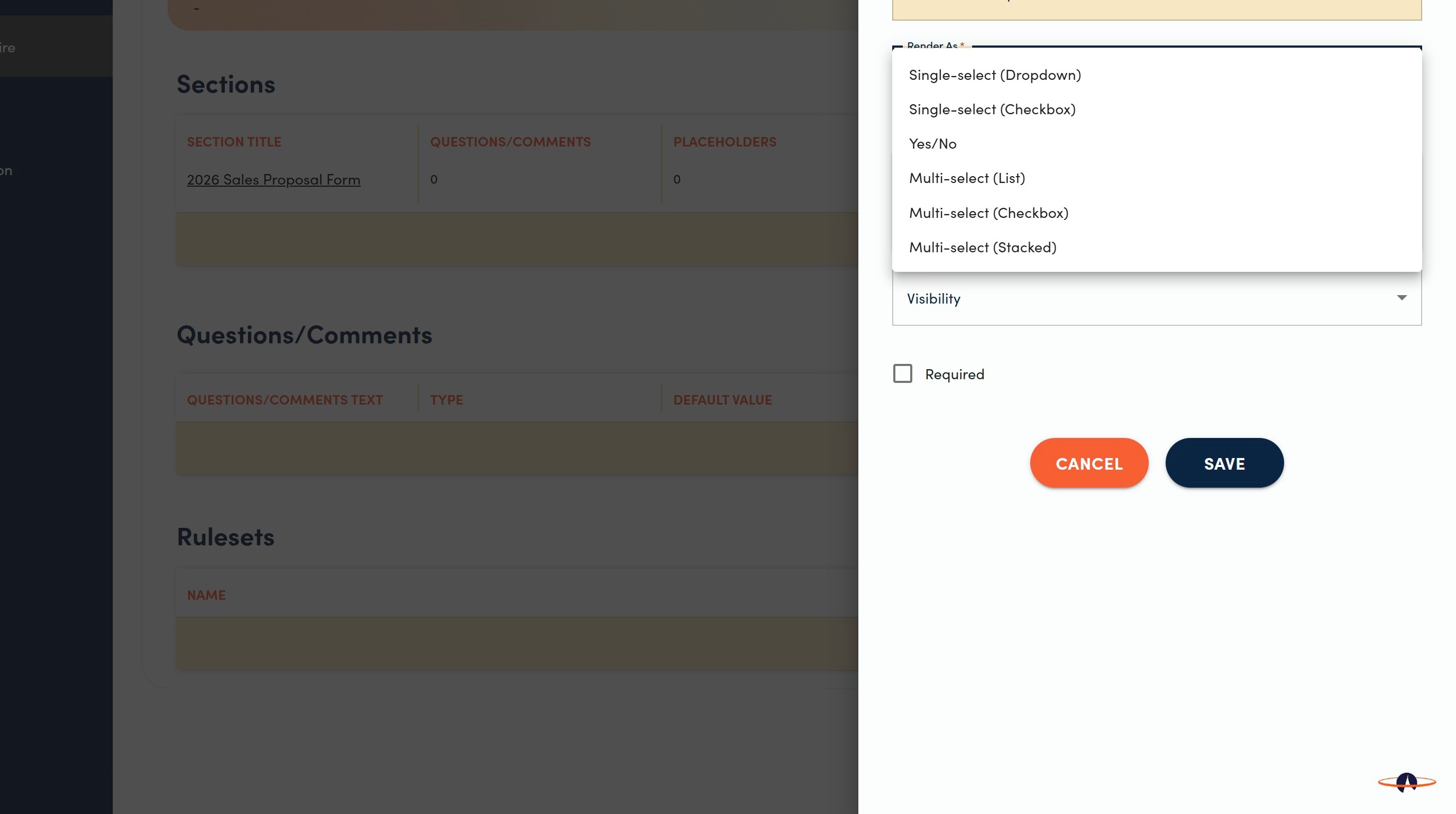
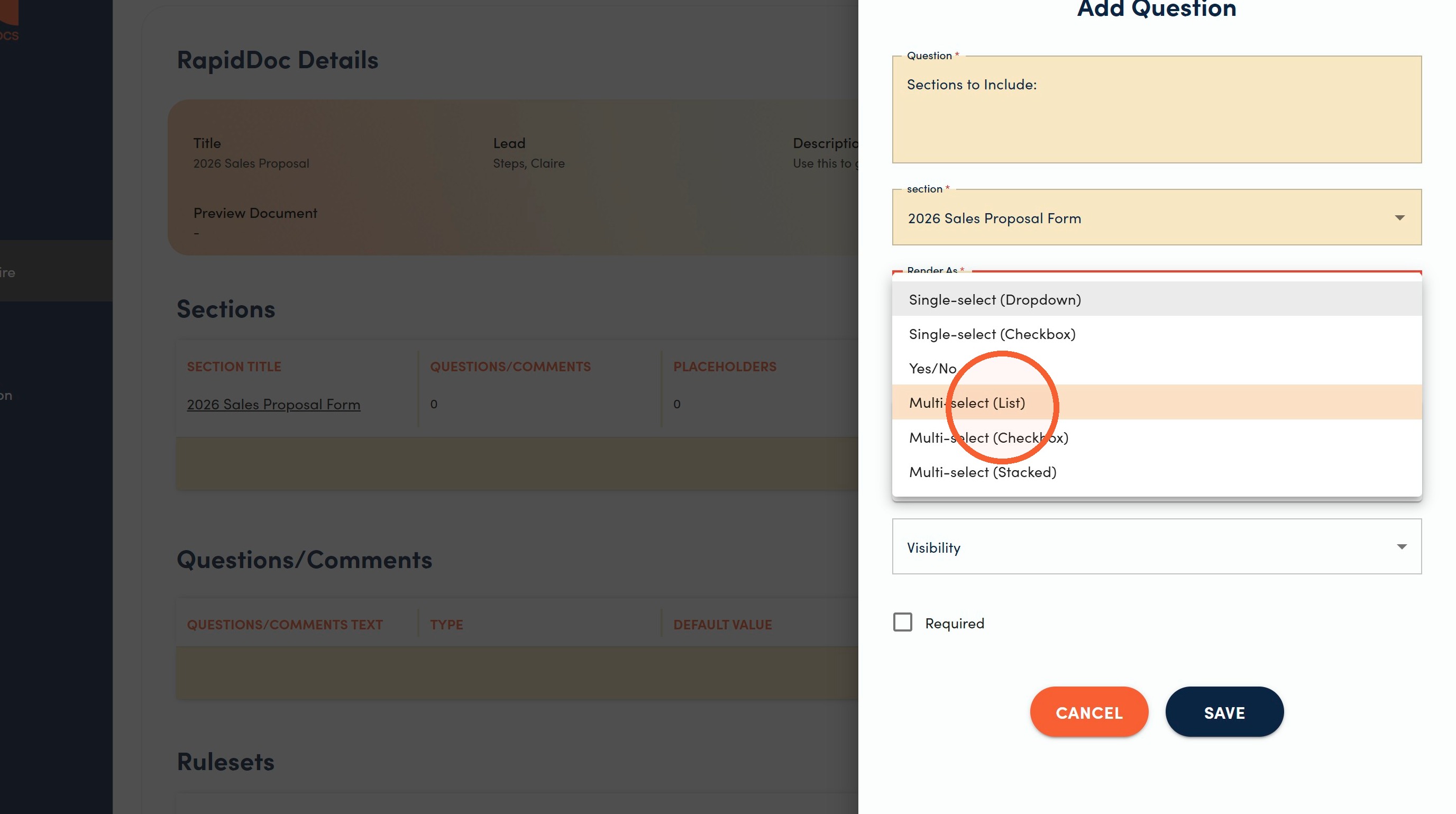
Tip: the most commonly used types are Single-select (Dropdown) for when you want the user to choose one option and Multi-select (List) for when you want to offer the ability to choose more than one option.
11. Multi-select (List) is the recommended type for questions that allow more than one option to be included, and to display these options in a dropdown menu.
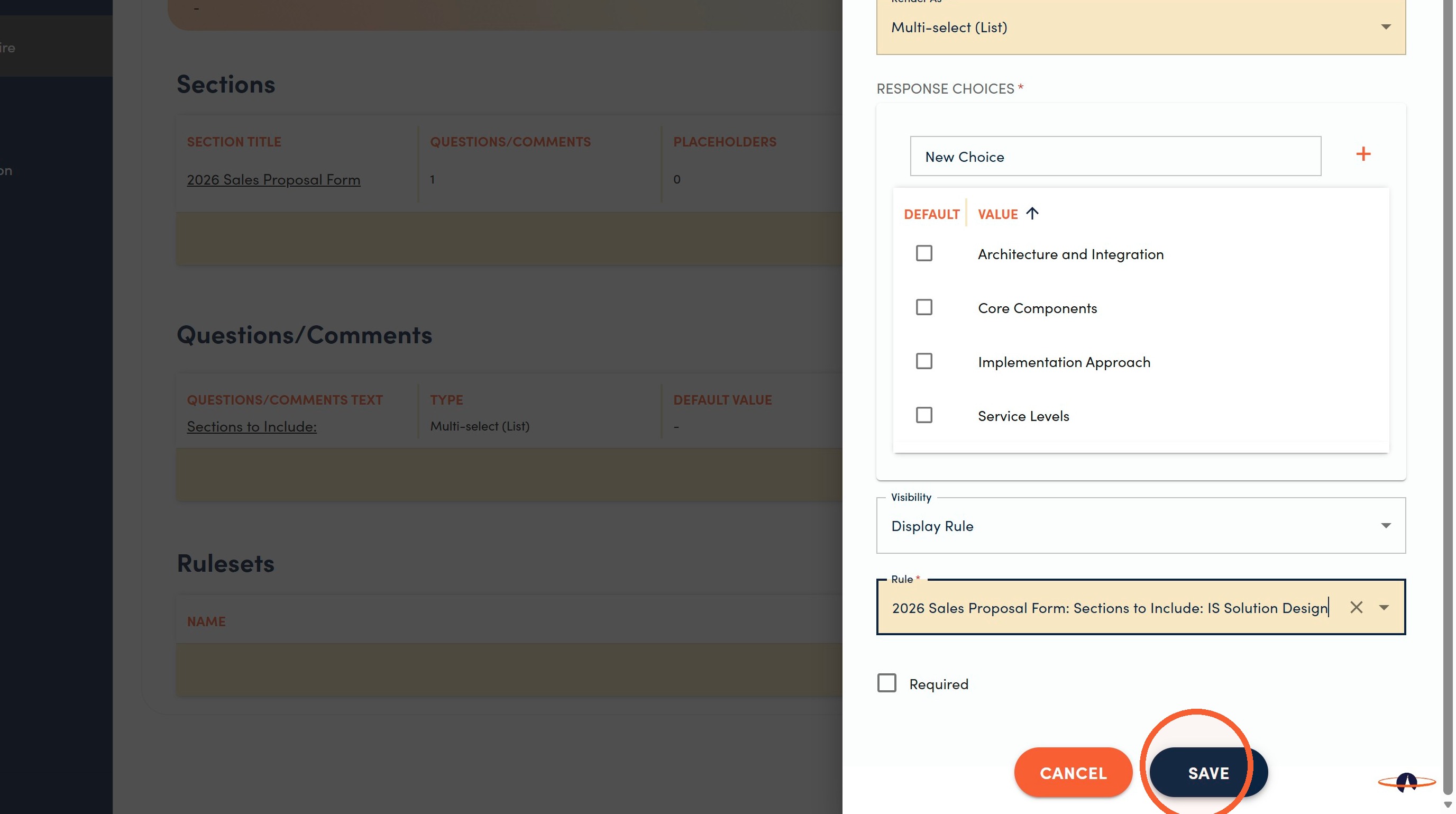
12. Type an answer option in the New Choice box.
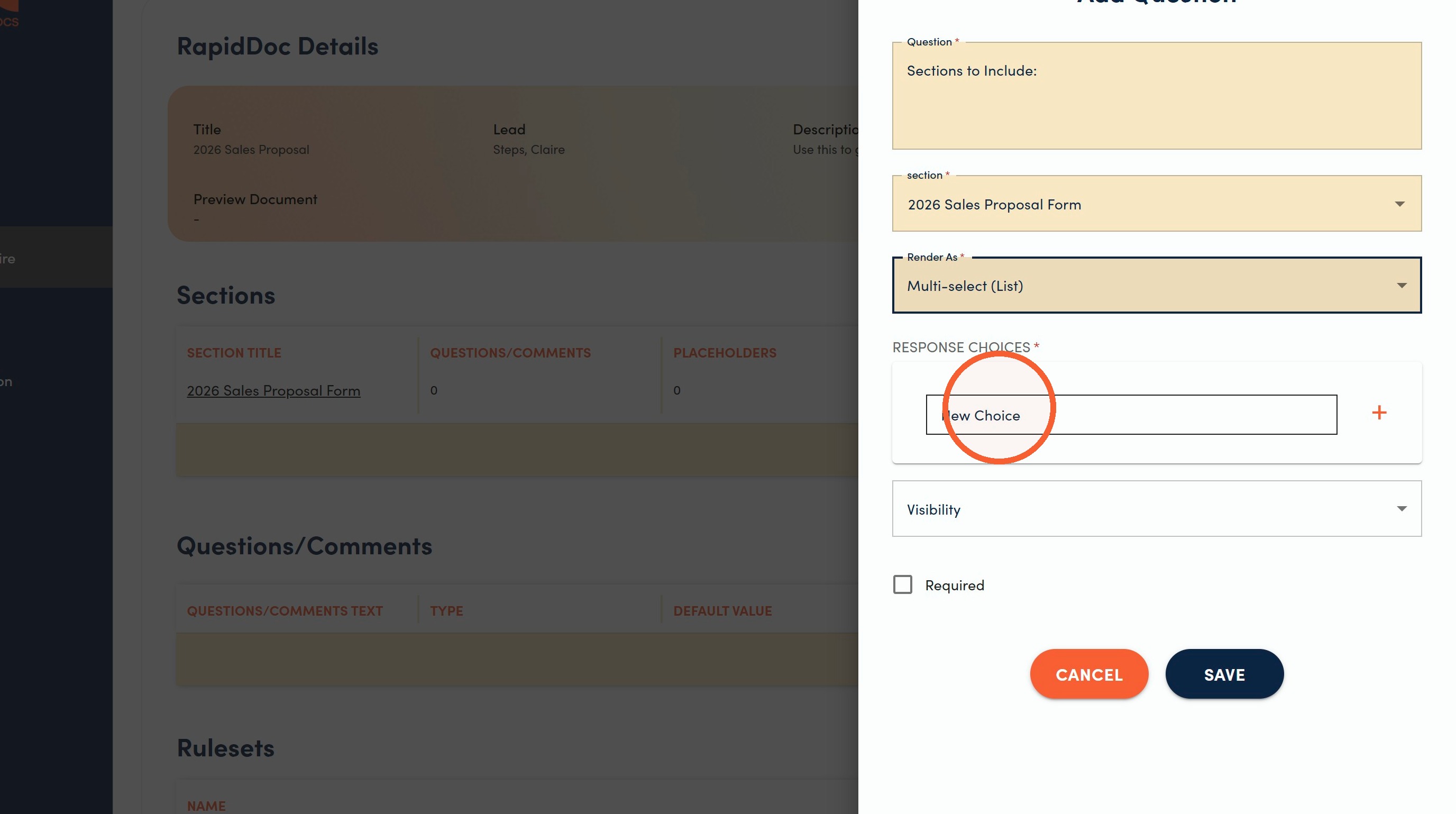
13. Click Add to add the entered information as an answer option.
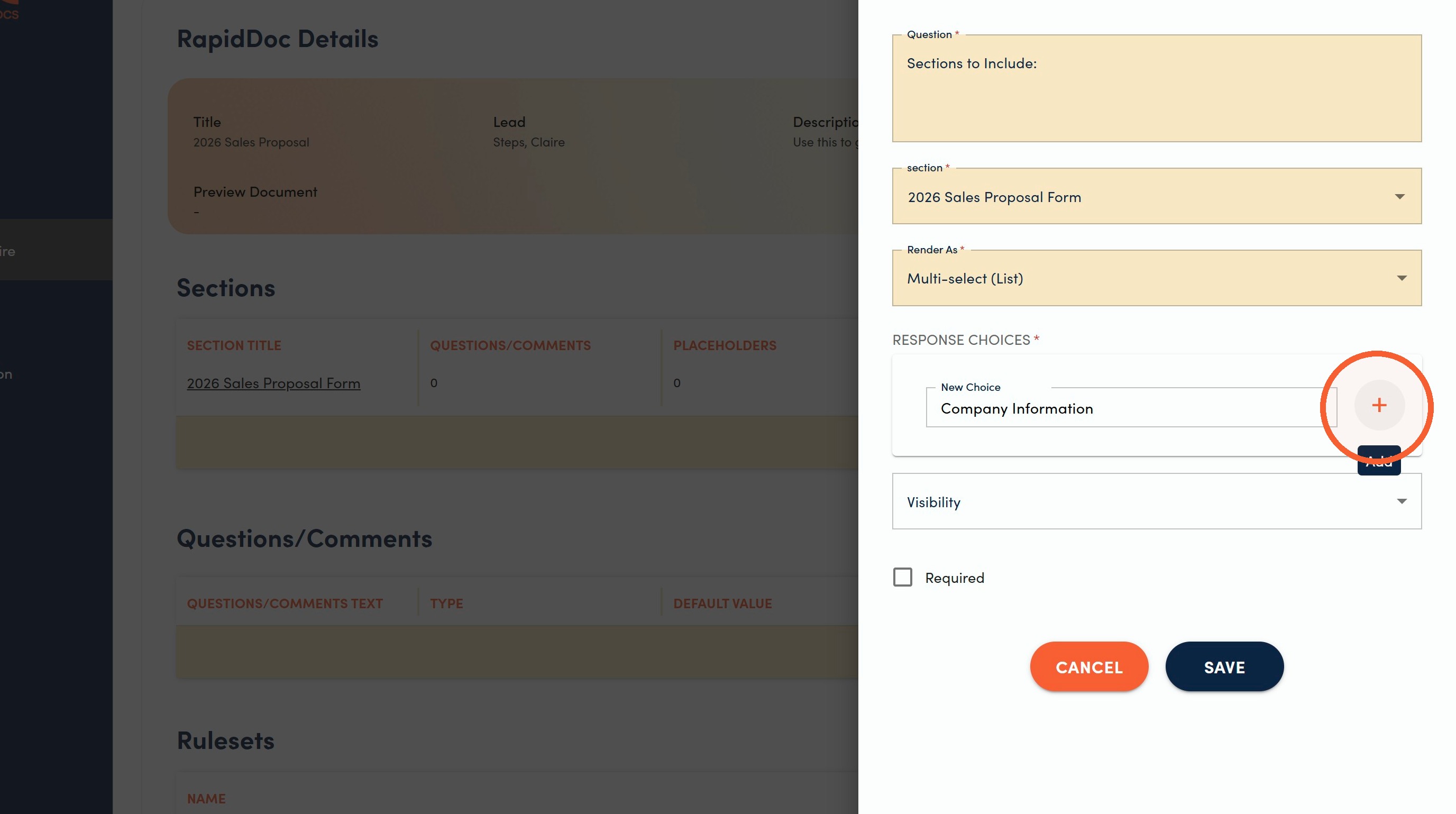
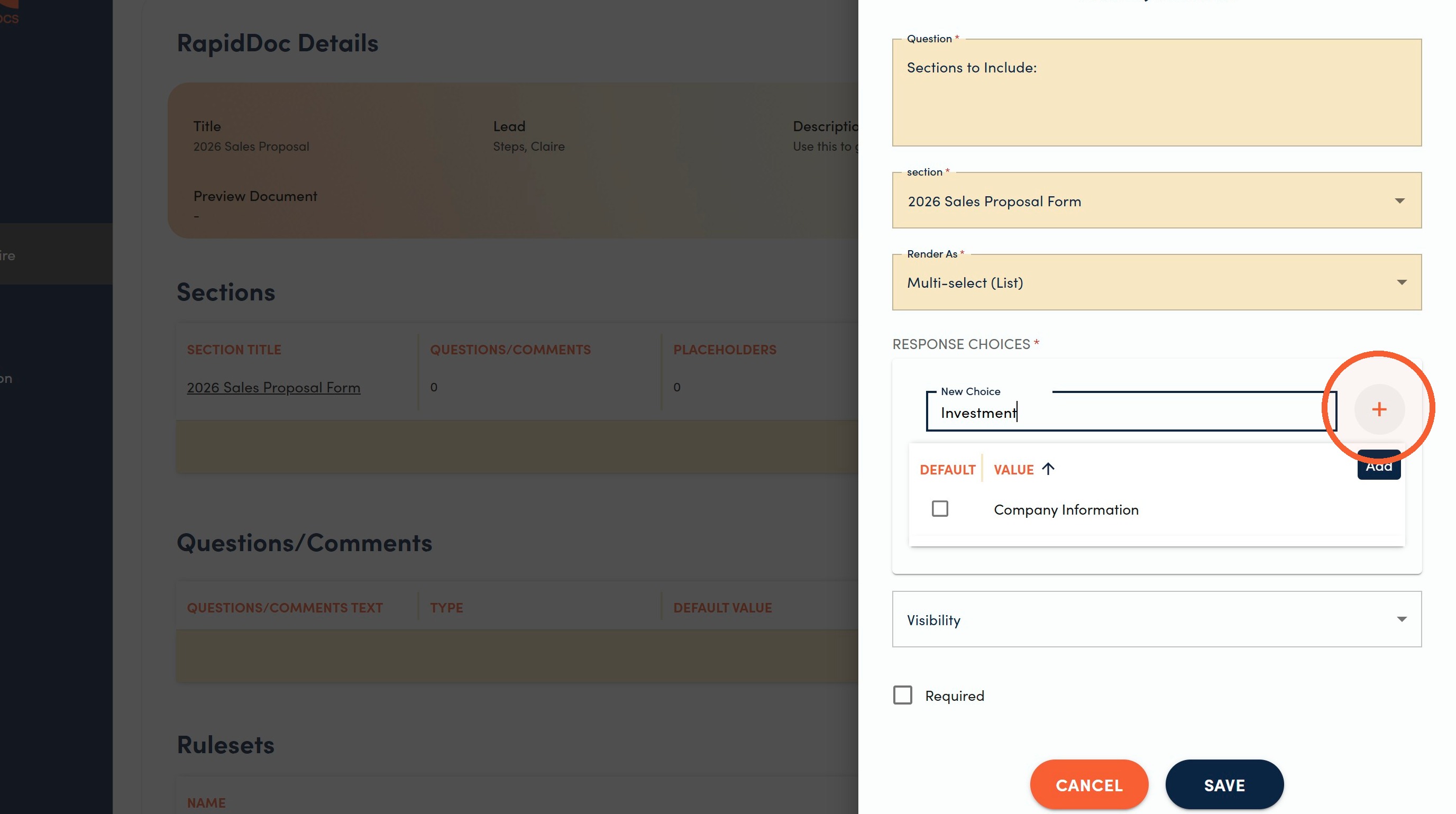
14. Repeat the previous two steps until you have added and all of your options appear on the displayed list.
Note: Select the checkbox next to your preferred Default answer if appropriate.
Dependent Questions
15. More questions can be added, and you may apply visibility options to implement dependencies in the Questionnaire if needed.
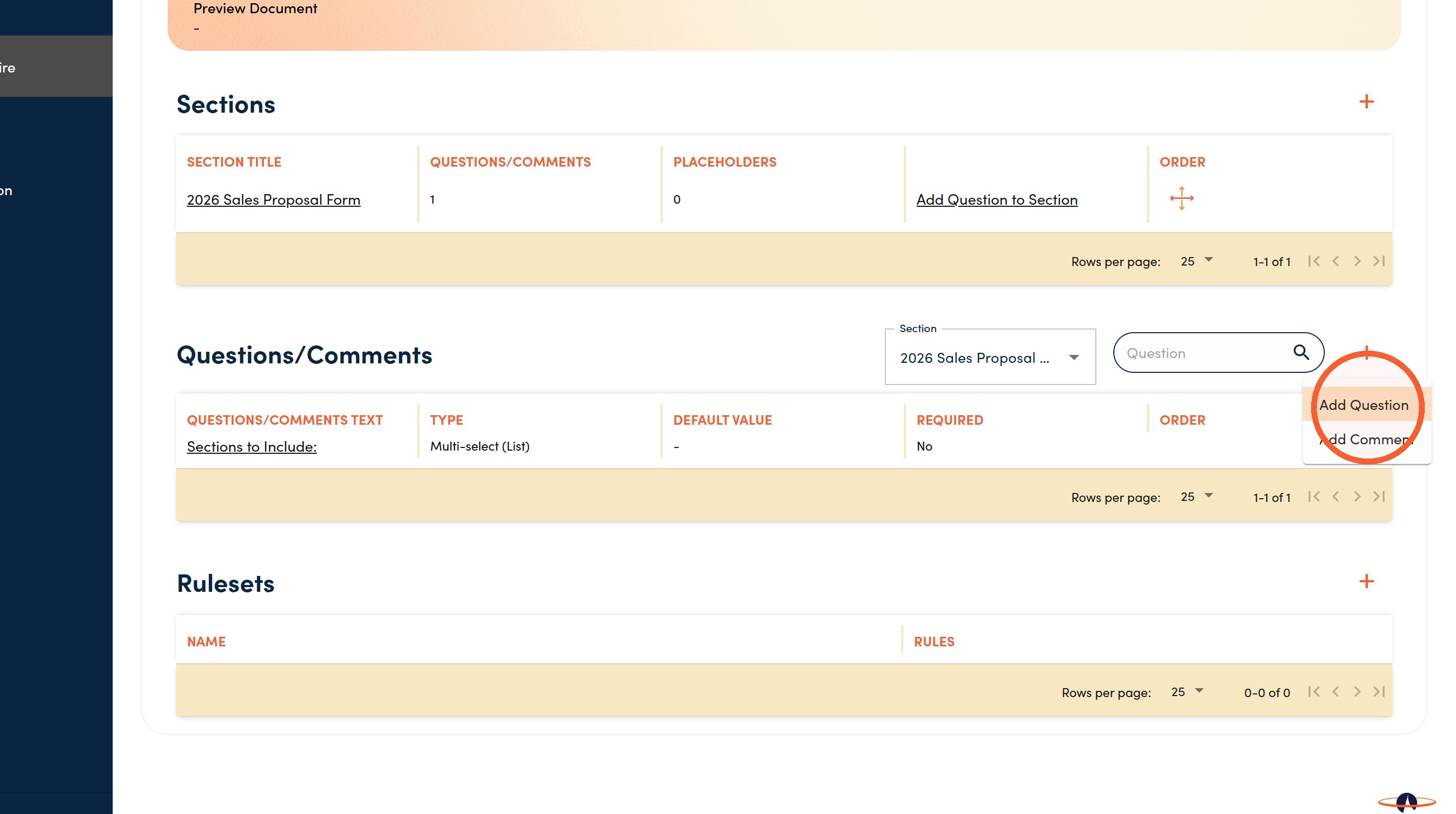
16. Repeat the steps for adding a new Question.
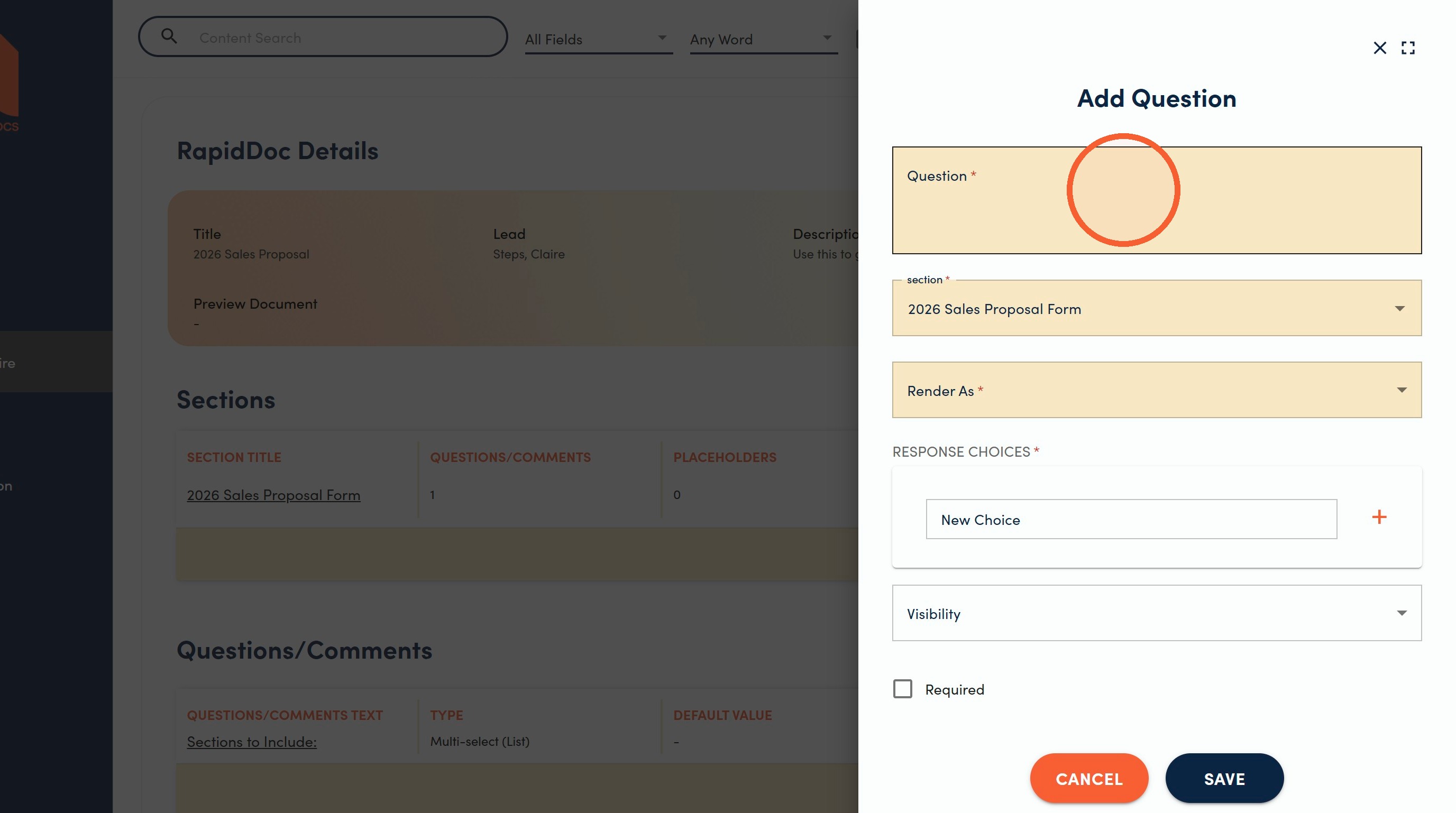
17. Once you are finished configuring your response type and choices, Click the Visibility dropdown.
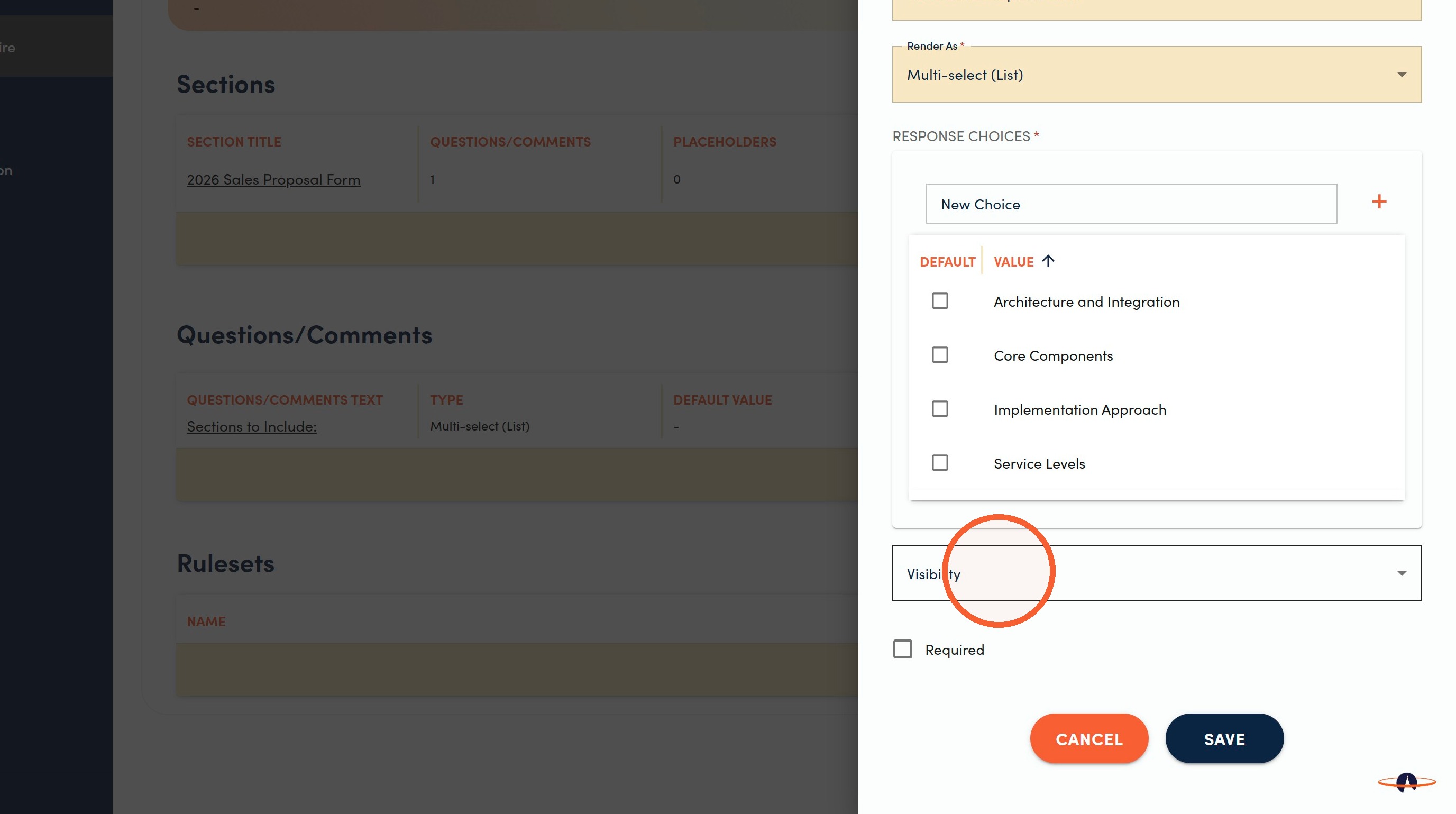
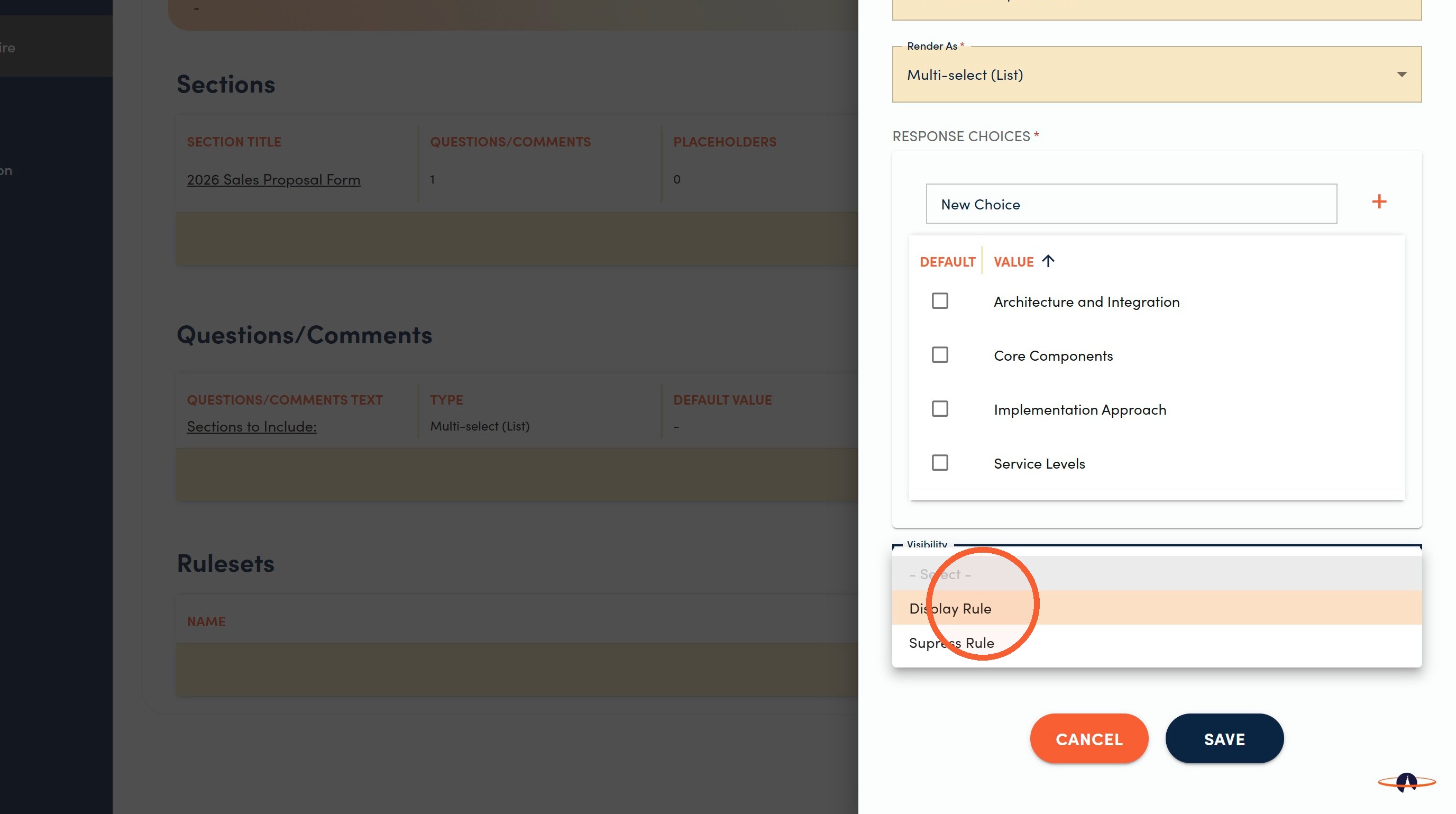
18. Click Display Rule to add logic for when this Question should appear in the form.
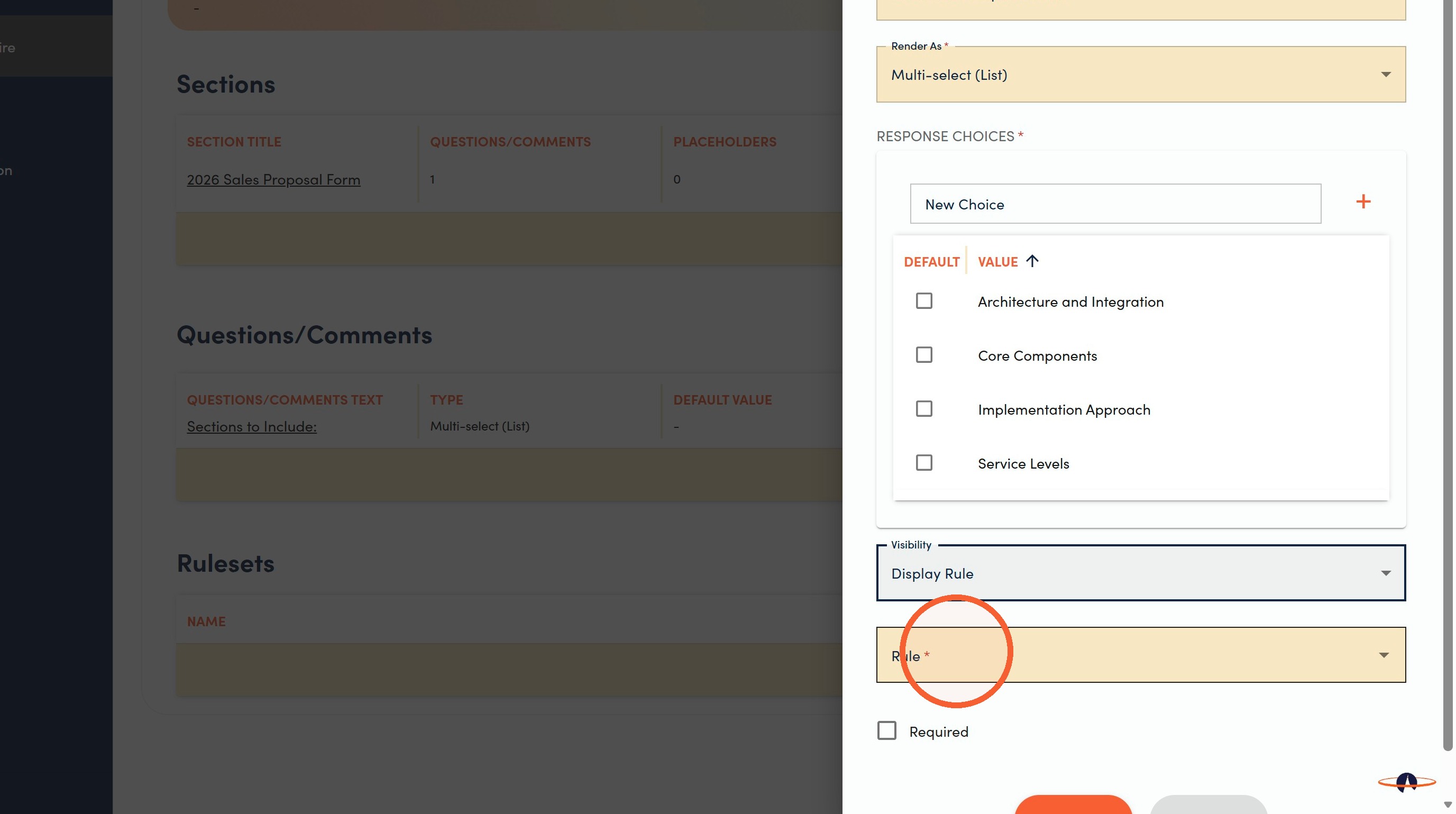
19. Click the Rule * field.
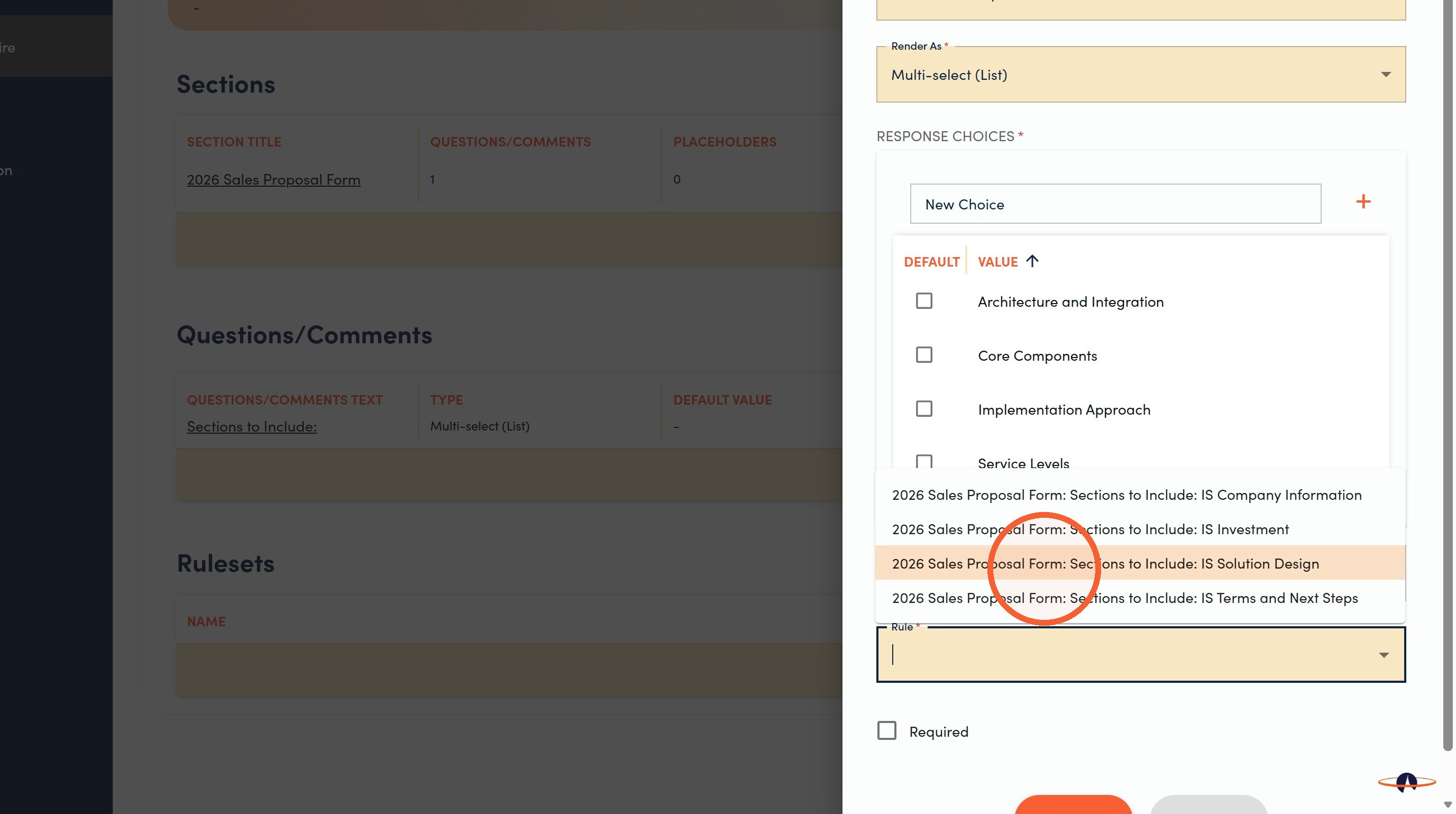
20. Click the option that needs to be selected to display of the additional Question.
21. Click Save.
Continue to RapidDocs | Content Menu | Linking Content for next steps.