
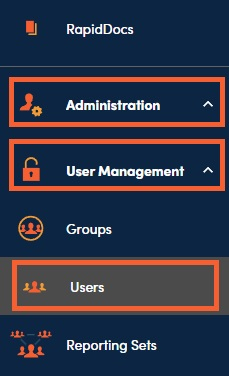
1. The Users section can be found under Administration, User Management, then Users.
2. Inactive users are excluded from this view by default. Click the Show Inactive Users checkbox to display all user accounts.

3. Choose from the Group dropdown list to display only members of a specific User Group.

4. Use the Search Bar to look for a specific user, using a name or an email address and then hit Enter.

5. Click the Export icon to export the users visible in your view to a .csv or an Excel file.

6. Click the + and follow the prompts to add a user manually.
Users can also be added and modified by exporting users to .csv, adding users or making changes to existing users and importing the updated file back into RocketDocs. Please refer to the following article for more information on creating or modifying users via Excel import: Excel Import Guide: Users
