
Skip to content
English - United States
  • There are no suggestions because the search field is empty.

User Level Restrictions

Content restrictions can be set by the User Administrator in User Management, in either the User or Group sections. Restrictions set at the group level will apply to every user in the group. Setting up restrictions (and privileges) at the user group level is most efficient since these settings will apply to all users in the group without the need to apply them to each user individually. We recommend using group level restrictions to ensure consistent access levels for users with similar roles.

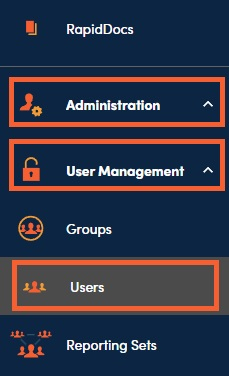
1. Navigate to Administration, User Management, then Users.
 9bb14c9d-b12b-4069-9069-c38222c6b64c 

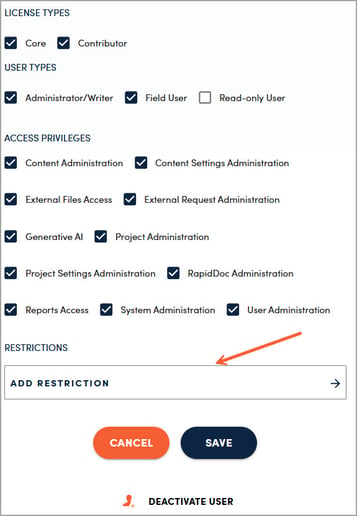
2. Click on the user name that you would like to add a restriction to. In the side panel, navigate to Restrictions toward the bottom.
 997332d7-f23b-444d-a67f-db2a46dbbe5a 

📋Note:

If you need more information on how to add users, please refer to our User Account Management article.


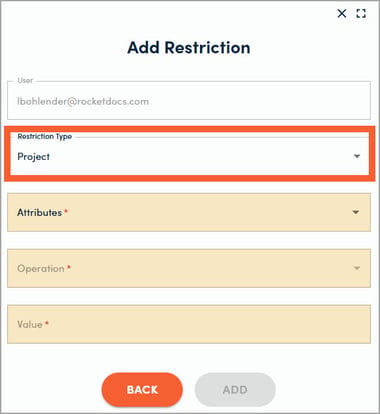
3. Choose whether you want to set a Project or a Content restriction, then enter the criteria for the items you want to restrict from the user's view. Be sure to click Add between each restriction, then Back and Save on the prior side panel.
4bed6ba1-5c4d-40e8-84e7-37345ba2566e 

📋Note:

Refer to our Group Level Restrictions article if you would like to set a restriction for an entire user group.